Temporarily hiding an item for service
Put a unit into maintenance and choose whether to hide it from your storefront for a date range, without deleting the item.
Where to find it
Maintenance (left sidebar) → a machine's card → Put into maintenance
This isn't a field you set on the item's own editor — it's a separate action you take on a unit: Put into Maintenance. It takes a unit out of service and, if you choose, hides the whole item from your storefront while it's out.
Where to find it
Maintenance in the left sidebar → open the machine's card → Put into maintenance. Then fill out the dialog.
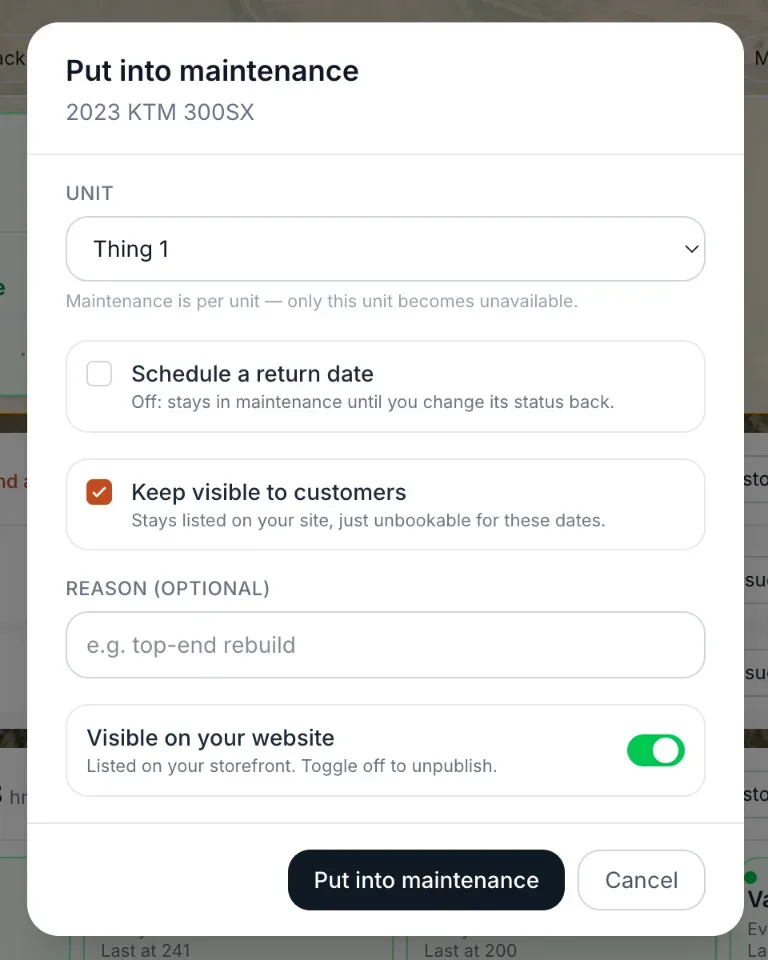 The Put into Maintenance dialog, with the storefront-visibility checkbox
How it works
- Schedule a return date — turn this on to pick the day it goes in and the day it comes out ("Goes in" and "Comes out" times). It frees up automatically at the end. Left off, the unit stays in maintenance until you click Take out of maintenance (see below).
- Keep visible to customers — on by default: the item stays listed on your site, just unbookable for these dates. Turn it off to remove the item from your site for the window; it is restored automatically afterward.
- Reason (optional) — a note for your own records.
- Unit — shown when the machine has more than one unit, so you choose which one goes out. If the machine has no individual units yet, the window says so and creates "Unit 1" for you.
- Visible on your website / Hidden from your website — a separate switch that changes the item's listing straight away.
If you hide the item and set a return date, it becomes visible again on its own once that date passes. If you hide it with no return date, it stays hidden until you clear the maintenance status.
Example
If a kayak's hull needs repair and won't be ready until the 15th, open Put into maintenance, turn on a return date of the 15th, and turn off "Keep visible to customers" so customers don't see it as bookable. The unit comes back by itself once the return date passes.
Taking a unit back out
When a unit is in maintenance, its card shows an amber In maintenance tag (or "N in maintenance" if several units are out), and the Put into maintenance button becomes Take out of maintenance.
1. Click Take out of maintenance. 2. Confirm "Bring (machine) back into service?". It says the unit will be bookable immediately. 3. The unit becomes available, any current and future maintenance dates for it are removed, and the item reappears on your website once no unit is still out.
On a machine's own header the button frees every unit that is currently in maintenance. To put another unit out, use that unit's own section.
Good to know
- A maintenance window can start in the future. A window that has not started yet shows no tag until it begins, and the Maintenance screen has no button to cancel it before then.
- A retired unit cannot be put into maintenance ("Cannot put a retired unit into maintenance."), and neither can a sold unit ("This unit was sold. Undo the sale first.").
- Units in maintenance are not counted as available for new bookings.
- This only affects new bookings on the storefront — it doesn't cancel or change any bookings already made.
- If you only have one unit and want the whole item unavailable indefinitely, leave the return date off — there is no separate end date to remember to clear.
- For a permanent removal instead of a temporary one, use Archive on the item's Review & Publish tab — see Publishing an item to your storefront.
- To log the actual repair work behind the maintenance, see Maintenance schedules on one item.
Related articles
- Common questions: maintenance and serviceQuick answers about the Maintenance page, including logging a service, overdue and due soon statuses, deferring a task, updating meters, putting a unit into maintenance, templates and the daily email.
- Add-ons on one itemAdd-ons are paid extras (helmet, fuel, insurance) that can be offered with an item as required, optional or hidden. Attach them through the item editor's Add-ons card, or delegate to a connected AI assistant.
- Naming and describing a rental itemThe item's name, photos, SKU, category, and public description — the first tab when you create or edit an item.
- Post-ride (return) inspection checklistA checklist your team must complete when a machine comes back, which blocks the Finish rental button until every box is checked.
- Item variants: color, size, and other optionsTrack different versions of the same item, like sizes or colors, and how many of each you have, either by assigning a version to each unit or by typing counts.
Still stuck? Ask the chat.
Was this helpful?