Waivers, age minimums, and requirements on one item
Choose which waiver applies to one item, and set its minimum age and minimum skill level.
Where to find it
Fleet → open an item → Requirements tab
The Requirements tab controls which waiver a customer signs for this specific item, and the item's minimum age and minimum skill level. A blue note at the top reads "Admin manual bookings bypass all online requirements automatically."
Where to find it
Fleet → open an item → Requirements tab (step 4 of 6).
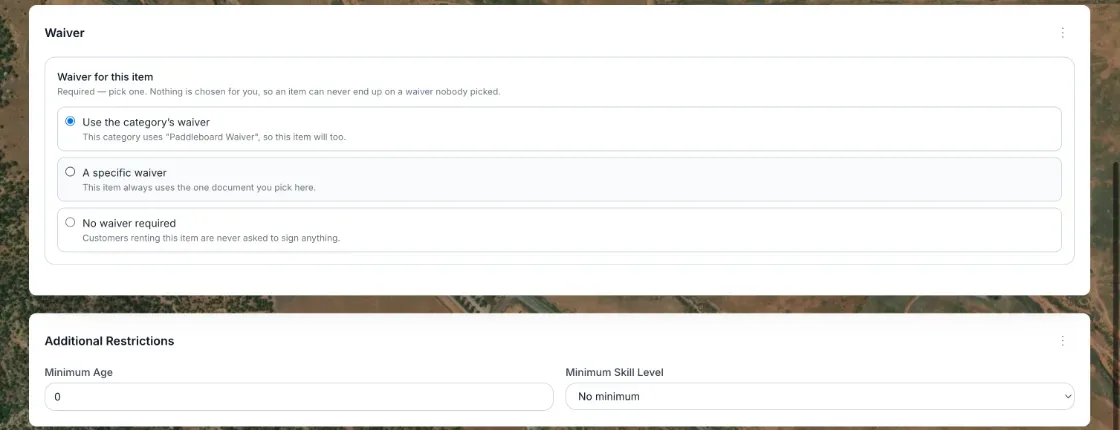 The Waiver for this item choices and the Additional Restrictions fields
How it works
- Waiver for this item — you must pick one of three choices. Nothing is chosen for you on a new item, and the item cannot be saved until you pick (a saved item keeps its choice):
- Use the category's waiver — the item follows its category. This is greyed out until the item has a category. Under it, Renta shows which waiver the category uses, or says the category has none, in which case the item uses whichever of your waivers is written for that kind of equipment, or your business default.
- A specific waiver — this item always uses the one waiver you choose from the Select a waiver… list.
- No waiver required — customers renting this item are never asked to sign anything.
- There are no longer per-item rows for other requirements (such as a driver's licence), and no separate online and at-pickup settings. Asking for a licence, insurance proof or another document is set in Settings → Checkout steps with a File Upload step; see Designing your checkout steps.
- Minimum Age — the youngest age a renter can be. A new item starts at 18; an existing item with no age set shows 0 (no minimum). You can set it to any age from 0 to 120. It is saved with the item. When a customer reaches the payment page for a booking that includes this item, they must tick "Riders must be (age)+. I confirm that every rider on this booking is at least (age) years old" before the Pay button turns on (see "What customers see on the payment page" below). That tick is the customer's own confirmation; Renta does not check anyone's age at that point. The age rule that applies to people signing a waiver is the business-wide Minimum renter age under Waiver Policies in Settings.
- Minimum Skill Level — choose No minimum, Beginner, Intermediate or Advanced. No minimum by default. It is saved with the item and shown to customers as "Skill level" on the item's public rental page. A skill value imported from a CSV that isn't one of the four options is kept and shown in the list.
Example
A jet ski item might use A specific waiver for jet skis and set Minimum Age to 21, while a paddleboard for beginners might have no age minimum and a Minimum Skill Level of "Beginner" just as guidance, without blocking checkout.
Good to know
- Use the category's waiver needs the item to have a category. If that category has no waiver picked, the item falls back to the waiver written for that kind of equipment, or your business default — see Organizing items into categories.
- These requirements are about what the customer agrees to or provides. A pre-rental staff checklist is a separate setting — see Requiring an inspection before a rental goes out.
What customers see on the payment page
If any item on a booking has a Minimum Age set, the customer's payment page shows a tick box above the Pay button: "Riders must be 22+. I confirm that every rider on this booking is at least 22 years old." (the number is your item's age). The Pay button stays off until they tick it. With several items in one booking, the highest minimum age among them is shown. This is a confirmation by the customer, not an ID check; the age on the signed waiver is the check that counts.
Related articles
- Common questions: creating and editing a fleet itemQuick answers on adding and editing a rental item, from photos, SKU, tags, rates, packages, discounts, deposit and waivers to Live or Draft, Save as Template, clone and delete.
- Waivers: common questionsQuick answers on tracking who has signed, sending and resending waiver links, signing in person, building waiver templates, the default waiver, selfie and ID photo requirements, and waiver policy values like minimum age.
- Add-ons on one itemAdd-ons are paid extras (helmet, fuel, insurance) that can be offered with an item as required, optional or hidden. Attach them through the item editor's Add-ons card, or delegate to a connected AI assistant.
- Maintenance schedules on one itemTurn maintenance tracking on for an item, see its recurring service tasks, and find where to change them.
- Naming and describing a rental itemThe item's name, photos, SKU, category, and public description — the first tab when you create or edit an item.
Still stuck? Ask the chat.
Was this helpful?