Redirecting customers to an external app
Send every visitor to your public storefront to an outside URL instead — this replaces your entire Renta storefront, not just one button.
Where to find it
Settings → External App URL
The External App URL page redirects visitors away from your Renta storefront to a separate website you host yourself. It is an all-or-nothing switch for your public storefront.
Where to find it
Settings → External App URL (page title External App URL). It needs permission to edit website content, so only Owners and Managers see it.
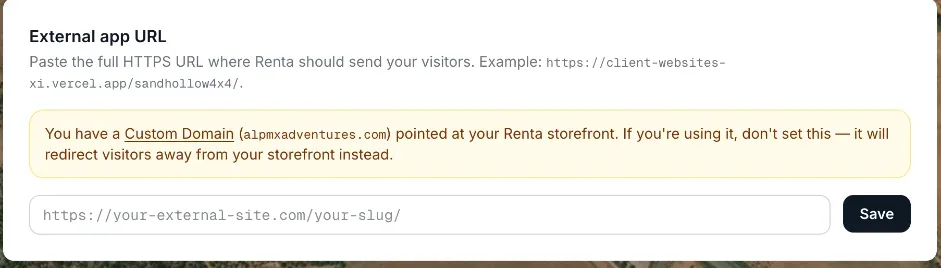 The Redirect URL field with the Save button and the "Redirect is active" notice
How it works
- External app URL — paste the full https:// address and press Save. Without https:// Renta adds it; a plain http:// address is refused ("URL must use https://"). Addresses over 2048 characters or that are not real addresses are refused.
- Clear — appears once a redirect is saved and turns it off ("External app URL cleared. Renta storefront will serve again."). Saving the box empty does the same.
- Redirect is active — a green box naming the address visitors are sent to. It applies to your storefront address on Renta and to your custom domain if it points at Renta.
- Loop protection — Renta refuses an address that points back to Renta ("URL can't point back to this Renta app") or to your own Renta-managed custom domain.
- DNS help — the page shows the records for pointing your own domain at the external site (CNAME `book` to `cname.vercel-dns.com`, or an A record on `@` to `76.76.21.21`), and, if you have a Custom Domain, steps for unlinking it from Renta first.
Example
You host a custom site at an https address. Paste it, press Save, and anyone opening your Renta storefront is sent there instead.
Good to know
- While it is on, visitors cannot book on your Renta storefront. Your admin dashboard and the website builder preview keep working.
- Every visit goes to the one saved address, not to the matching page.
- Most shops should leave it blank.
- For more quick answers see Common questions: sending visitors to an external website.
Related articles
Still stuck? Ask the chat.
Was this helpful?