Building your website with the drag-and-drop editor (Site Builder)
A tour of the Site Builder screen: the top bar, the Sections, Pages and Design tabs, the canvas, device previews, undo, keyboard shortcuts and autosave.
Where to find it
Website (left sidebar)
The Site Builder is where you build your public website. You add blocks called sections (a hero banner, a fleet grid, a photo gallery and so on) onto a grid, arrange them, and publish the result page by page. This page tours the screen. For adding pages, changing your template and publishing, see Pages, templates and publishing in the Site Builder.
Where to find it
Click Website in the left sidebar. Hover over it for quick links: Drag and drop, Custom code, View my site (opens your live site in a new tab), Checkout, Blog, Domain and Embed widget.
Only owners and managers can use the Site Builder. Other roles are sent back to the dashboard. It also needs a screen at least 1,024 pixels wide. On anything narrower you will see "Use a larger screen to edit your site".
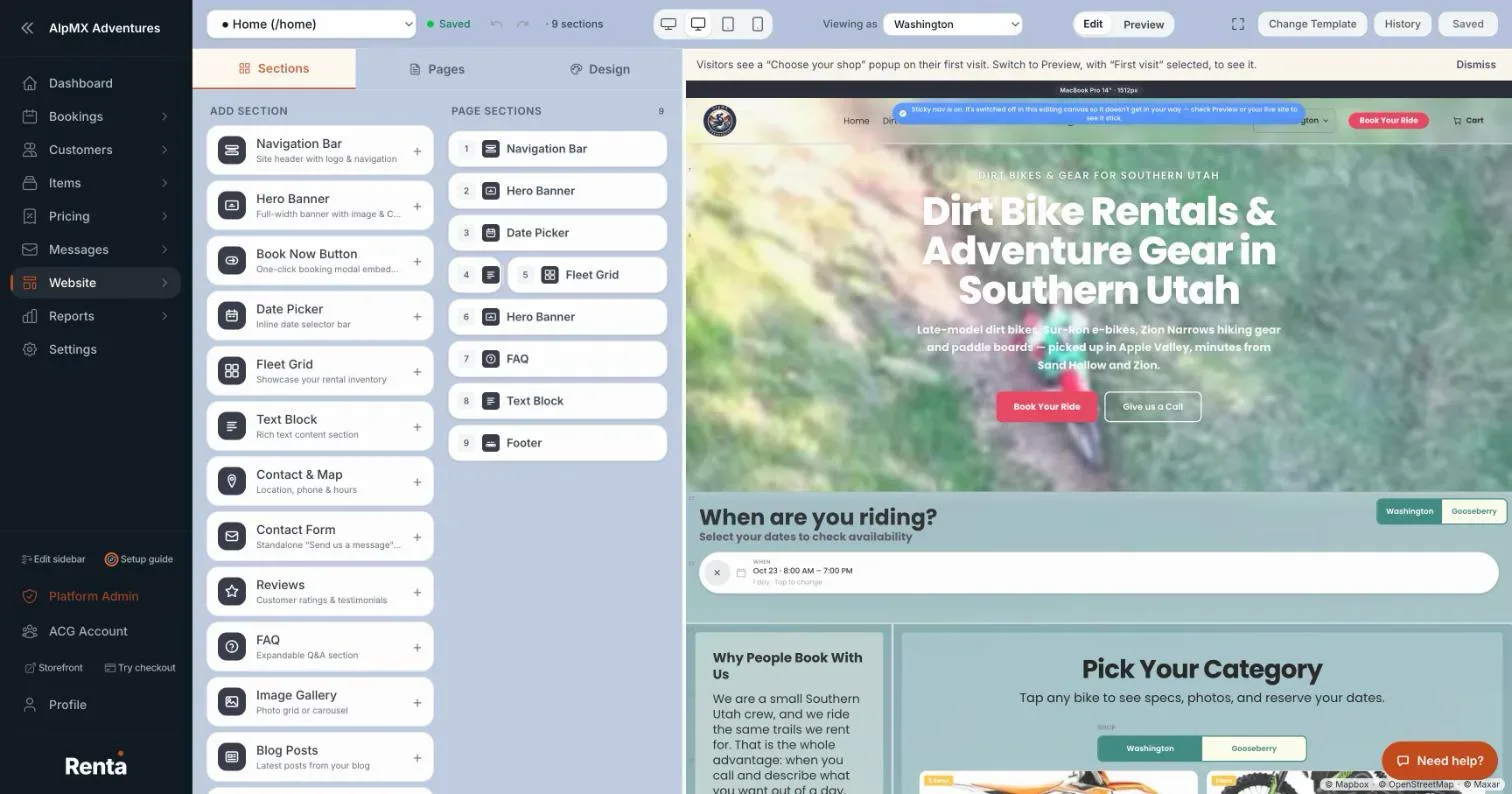 The Site Builder with the top bar, the Sections tab on the left and the page on the canvas
The top bar
- Page drop-down (labelled "Select a page to edit"). Lists your pages as a dot, the page title and its address, with a filled dot for a published page and an empty dot for one that is not published yet.
- Autosave status. There is no Save button. Your changes save by themselves a moment after you make them, and the status reads Saving..., Saved or Save failed. "Failed to save draft." appears if something goes wrong.
- Undo and Redo (Cmd+Z and Cmd+Shift+Z on a Mac, Ctrl on Windows). They cover the layout and content of your sections, not the colors and fonts. They remember the last 50 steps and forget them when you switch to another page.
- · N sections — how many sections are on the page.
- Device buttons — small icons that preview the page at wide desktop (1920px), MacBook Pro 14 inch (1512px), iPad Pro 11 inch (834px) and iPhone 16 Pro (402px). See Making your site look right on phones and tablets.
- Edit / Preview toggle. Preview shows your current draft in a copy of the real page, including changes you have not published. It is not necessarily what is live.
- Fullscreen — Enter fullscreen, and Exit fullscreen (Esc).
- Change Template and History — shown directly on wide screens. On narrower ones they are inside the … (More page actions) menu, where History is called Version History.
- Publish — see Pages, templates and publishing in the Site Builder.
The left panel
Three tabs. Drag the divider between the panel and the canvas to make the panel wider or narrower.
Sections
- Add Section lists the section types. Click one to add it at the next free spot, or drag it onto the page. The types are Hero Banner, Fleet Grid, Text Block, Contact & Map, Contact Form, Reviews, FAQ, Image Gallery, Blog Posts, Instagram Feed (only shown if Instagram is switched on for your account), Navigation Bar, Date Picker, Footer, Spacer, Book Now Button, Portal and Sandbox (a section for your own custom HTML, CSS and JavaScript). See the section articles, starting with Hero banner.
- With no page open it says "Pick a page first — use the page selector at the top."
- Page Sections lists what is on this page. Drag to reorder. Drop one onto half of another to share a row, and drag the handle between two to resize them. The X on a row removes that section immediately, with no confirmation (use Undo if you did not mean it).
Pages
Create, rename, clone, publish and delete pages. See Pages, templates and publishing in the Site Builder.
Design
Your site-wide colors, fonts and button style. See Setting your site-wide colors, fonts and spacing.
The canvas
Your page sits on a 12-column grid, and sections snap to it so things line up. There is no zoom control. The page is scaled to fit for you.
- Click a section to select it. A hint says "Click a section on the canvas to edit its settings." Its settings open in the left panel. On a tablet or phone preview the hint reads "Tap a section in the preview to edit it at (size) size only."
- A selected section has a toolbar with Duplicate and Delete, plus Bring to front and Send to back for sections set to float.
- In a section's settings, Float freely (desktop only) lets you place it anywhere instead of in a row. Customize style gives that section its own look.
- + Add Row adds an empty row for you to drag into. An empty row disappears when you reload. − Remove Row works only on an empty last row.
- An empty page says "Start building your page".
Keyboard shortcuts
- Esc deselects.
- Cmd or Ctrl + Z undoes, and + Shift + Z redoes.
- Cmd or Ctrl + D duplicates the selected section.
- Delete or Backspace deletes it, with no confirmation.
- The arrow keys nudge it by one grid cell.
Example
Say you want a new "About Us" page. Open the Pages tab and click New Page, then back on Sections click Hero Banner for a big photo and headline, Text Block for your story, and Contact & Map at the bottom. The status shows Saved as you go, and when you are happy you click Publish.
Good to know
- The word on screen is section, and some older help pages call the same thing a widget.
- Changes to your sections and your colors and fonts stay in draft until you publish. Autosave only saves the draft. A few page settings go live straight away, as explained in Pages, templates and publishing in the Site Builder.
- Every section can look different on phones than on desktop. See Making your site look right on phones and tablets.
- There is no warning when you leave the Site Builder with changes that are saved but not published. They stay saved as a draft.
Related articles
- Website and Site Builder — common questionsQuick answers on building, previewing and publishing your website pages, setting the page URL and Google title, picking colors and fonts, and fixing "why isn't my change showing".
- What's on your dashboardThe at-a-glance widgets showing today's rentals, deliveries, activity, and fleet health when you open Renta.
- Dashboard — common questionsQuick answers on every dashboard card, number and button, how to rearrange or hide widgets, what the calendar colors mean, and why a card is missing or looks empty.
Still stuck? Ask the chat.
Was this helpful?