Browsing your fleet
The Fleet page lists every rental item you own, with search, filters, an archived view, and bulk actions like Move to shop.
Where to find it
Fleet (left sidebar)
The Fleet page shows every rental item in your business, one card per item. Each card shows the item's status and, if you use more than one shop, where it is kept.
Where to find it
Fleet in the left sidebar.
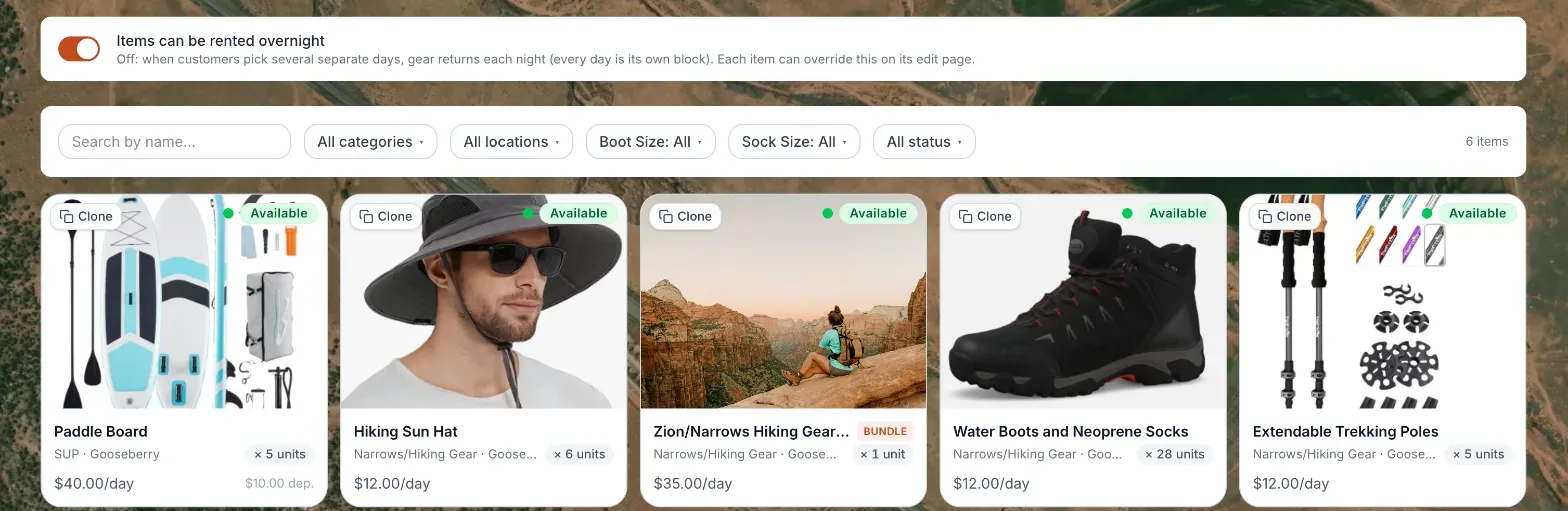 The Fleet list with search and filters
How it works
Finding items
- Search — type in "Search by name…" to find an item by name.
- Category — narrow the list to one category (for example "Jet Skis"). Shown once you have categories.
- Location — narrow the list to one pickup location. It reads "All locations" until you pick one. With two or more shops it lists every shop, even one with nothing assigned yet.
- Characteristics — filter by a variant such as a color or size, when your items have them.
- Status — "All status", or Available, Maintenance, Retired, or Archived. A status only appears in the list when at least one item has it.
- Clear — resets every filter at once.
The Archived view
Choose Archived in the Status filter to see items that were archived. Each card there has a Restore button that brings the item straight back to your fleet and storefront.
Cards
- With two or more shops, each card shows the item's home shop (or "All shops"), and adds "units at …" when some of its units are set to a different shop.
- With one shop, the card shows where its units are, or the item's pickup location if its units have none of their own.
Bulk actions
1. Click Select Items at the top, then click the cards you want (or Select All). 2. With two or more shops, Move to shop… appears. Pick a shop (or "All shops (bookable anywhere)") and click Move. The shop is where each item is kept, and customers can only book it there. Units that were set to a shop individually are not changed. 3. The red Delete button removes the selected items. Items with active bookings can't be deleted. 4. Click Done (the same button) to leave selection mode.
Buttons at the top
+ Add Item and Scan (find a unit by its QR sticker or serial number) are always there. On a wide screen you also get Depreciation, Categories & Listing Order, Import, Item Templates, and Pricing; on a narrower screen those move into a menu.
Overnight switch
Above the list, Items can be rented overnight is a shop-wide switch. See Overnight rentals.
Good to know
- If nothing matches, the page shows "No fleet items found."
- The availability calendar (by booking or by quantity) is on the Bookings page, not on Fleet.
- To edit one item's settings, open it — see Naming and describing a rental item.
- Graying out an item or taking it off your site without archiving it is covered in Item availability controls.
Related articles
- Common questions: managing your fleet listShort answers about finding, filtering, selecting, moving, duplicating and deleting items on the Fleet page, importing a CSV spreadsheet, tags, categories, item templates, items at different shops, and the availability calendar.
- Reusable item templatesSave an item's setup as a template, start new items from a template, edit templates, and apply a template to existing items in bulk.
- Bulk-adding items from a spreadsheetUpload or paste a CSV to create many fleet items at once, preview them, then import.
- Tagging items for customers to search byTags are customer-visible labels, like "Beginner-Friendly," that help renters filter and find the right item.
- Website widgets — common questionsQuick answers on adding and setting up each website block (hero banner, fleet grid, photo gallery, Book Now button, contact map, reviews, FAQ, navbar, footer and more), and why a block may look empty on your live site.
Still stuck? Ask the chat.
Was this helpful?