Printing QR stickers for your equipment
Print a QR sticker for each tracked unit, issue or replace a unit's asset tag, and see what is on a sticker.
Where to find it
Fleet → open an item → Identity step → Individual units → Print QR labels; or a unit's page → Identification → Print label
Renta can print a QR sticker for each tracked unit. Stick it on the machine, and anyone on your team can scan it to open that unit's page. See Scanning a unit's QR code.
Where to find it
- All of an item's units at once: open the item in Fleet, go to the Identity step, find the Individual units panel, and click Print QR labels. The button shows only for a saved item that has more than one unit and is tracked Variants — per unit.
- One unit: open the unit's own page and, in the Identification section, click Print label. This link shows only once the unit has an asset tag. Without one the page says "Issue an asset tag to get a QR sticker for this unit."
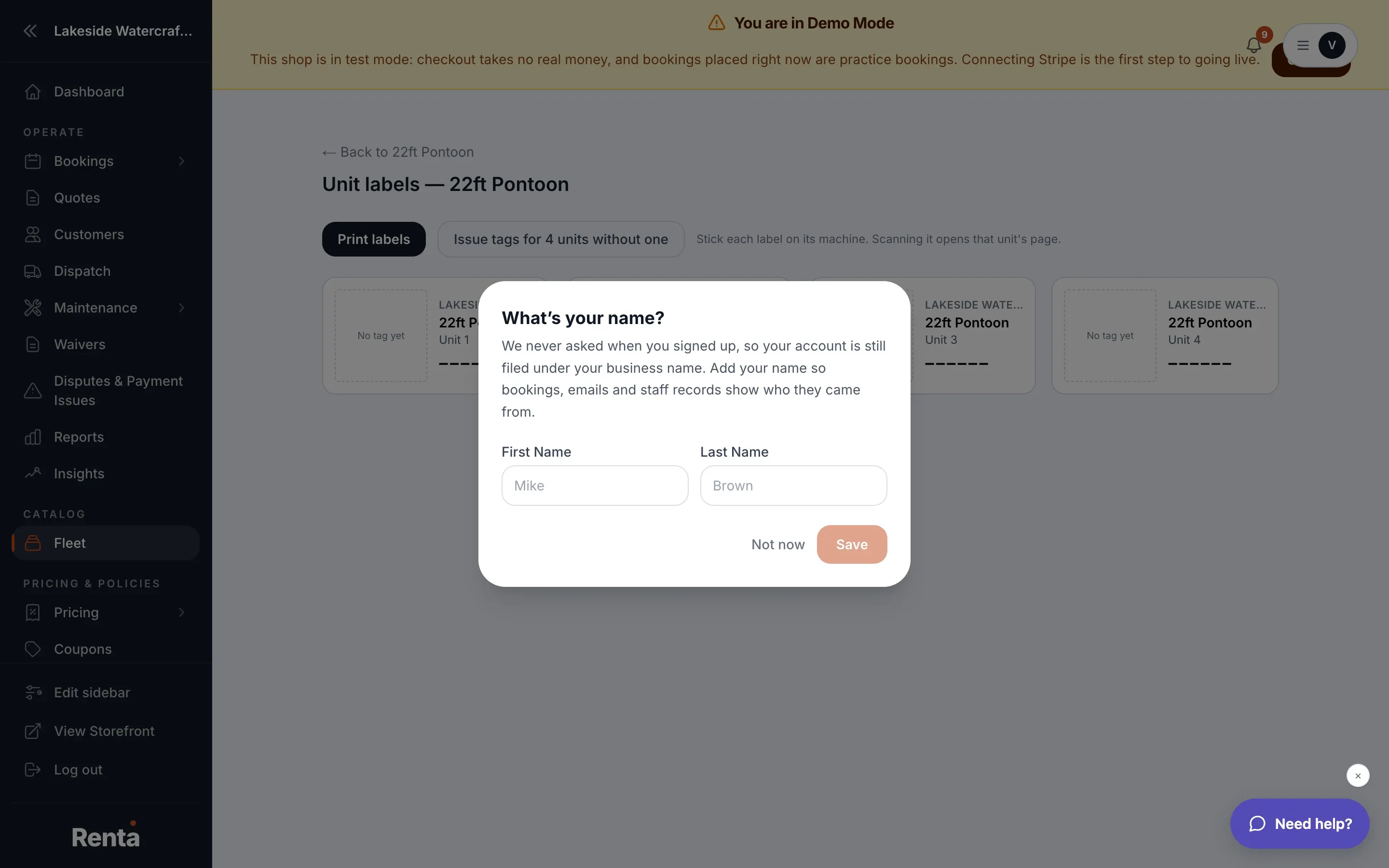 The Unit labels sheet with a QR sticker for each unit
The label sheet
The page is titled "Unit labels — (item name)" for a batch, or "Label for (unit)" for one. It says "Stick each label on its machine. Scanning it opens that unit's page." Click Print labels to open your browser's print window. The admin menus are hidden when printing.
Each sticker shows:
- A QR code that opens that unit.
- Your business name and the item name.
- The unit's nickname, or "Unit (number)" if it has no nickname.
- The asset tag, written like A7K-4N2.
- "SN" and the serial number as well, if the unit has one.
If some units have no tag yet, a button reads "Issue tags for N units without one". Click it to give them tags. A unit without a tag prints a placeholder card that says "No tag yet".
Asset tags
An asset tag is a short code unique to one unit. Renta makes them for you: 6 characters of digits and letters, leaving out I, L, O and U because they look like other characters. On the unit's page, in Identification:
- Asset tag — click Generate (or New tag if one exists) to make one. Typing your own is allowed: 6 characters, letters and digits only, and I, L, O and U are read as 1, 1, 0 and V. Issuing a new tag stops the old sticker from working.
- Serial number / VIN — type the manufacturer's number and click Save. It can be used to find the unit when you scan or search.
Example
You add ten kayaks as one item with ten units. On the item's Identity step you click Print QR labels, then Issue tags for 10 units without one, then Print labels. You stick one on each kayak.
Good to know
- Because a new tag makes the old sticker useless, only generate a new tag if the old one is lost or damaged, and reprint the sticker.
- The sheet prints one label per unit. The single-unit page prints just that one.
- If an item has no individually tracked units, there are no stickers to print. Switch the item to track units individually first.
Related articles
- Common questions: individual units (machines, vehicles)Quick answers about adding, naming, moving, retiring and selling one physical machine, plus its QR sticker, scanning, meter readings, booking history, damage reports and photos.
- Maintenance templatesBuild a reusable set of service tasks and inspection items once, then apply it to many machines, and understand exactly what applying does and does not change.
- Marking a unit as soldRecord the sale of one physical unit so it stops being bookable, leaves your asset totals, and shows its gain or loss against book value.
- Logging service and adjusting tasksHow to record a finished service, add a recurring or one-time service, change or delete a task, log one service on many machines, defer a task, correct meters and fix mistakes in the history.
- How a unit's value depreciates over timeTrack a unit's purchase price, current value, and how its value declines as it's used.
Still stuck? Ask the chat.
Was this helpful?