Reusable item templates
Save an item's setup as a template, start new items from a template, edit templates, and apply a template to existing items in bulk.
Where to find it
Fleet → Item Templates (button in the Fleet page header; in the More fleet actions menu on a smaller screen)
If you add many similar items, such as ten identical kayaks, a template lets you set up pricing, availability, deposit and other details once and reuse them.
Where to find it
On the Fleet page, click Item Templates in the header. On a smaller screen it is in the More fleet actions menu. Anyone with settings access can open it. The page is titled "Item Templates" and shows how many templates you have.
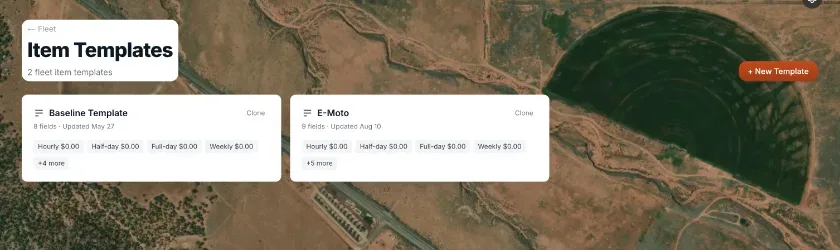 The Item Templates page with template cards and the New Template button
The templates list
Each card shows the template name, how many fields it fills in and when it was last updated, a description, and a few of its values as small tags. Click a card to edit it. Clone copies a template. With none, the page says "No item templates yet". + New Template takes you to the new item screen (see below), because the usual way to make a template is to set up an item first.
Make a template from an item
1. Open an item and go to its Review & Publish step. 2. In the Save as Template section ("Reuse this configuration for future items. Templates store pricing, availability, requirements, and maintenance settings.") click Create New Template, or Overwrite Existing to update one you already have.
Start a new item from a template
1. Click + Add Item on the Fleet page. The screen is called Add a Fleet Item: "Start from one of your item templates, or start with a blank item." 2. Pick a template card, or Start blank. 3. For a template, "Choose which parts of this template to bring in." Tick any of Pricing, Deposit, Availability, Maintenance Schedule, Depreciation and Inspection Requirements. A part the template does not have says "Not set on this template". Use ← Choose a different template to go back. 4. Click Continue →. You get a pre-filled item form that is not saved yet. You still confirm it and publish it yourself. See Publishing an item to your storefront.
If you have no templates, this screen is skipped and you go straight to a blank item.
Edit a template
Click a template card. The heading says "Editing fleet template". It is one simple form, not the full item editor:
- A name, a description ("Describe when to use this template…") and a Default category (the first choice is No default category).
- Availability rules: Min duration (days), Max duration (days), Buffer hours, Notice hours, Allow same-day booking (on by default) and Inspection required (off by default).
- Pricing: Hourly, Half-day, Full-day, Multi-day and Weekly rates.
- Deposit: Deposit amount.
Buttons: Save template, Back, and Delete template. Deleting asks you to confirm and says machines that received the template keep their current settings. Only the template itself is removed.
Apply a template to items you already have
Next to the editor is an Apply to fleet items panel. Templates never change existing items by themselves. You choose which items to update.
1. Use Search fleet items…, Select all out-of-date or Select all. If the template has a default category, click Show all fleet items to include other categories. 2. Each item shows Applied, Out of date or Not applied. 3. Click Apply to machines, review the preview of each change, then Apply changes.
Applying writes only what the template fills in: description, category, inspection setting, min and max duration, buffer, same-day booking, notice, the five rates, and the deposit amount and hold timing. See Reusable pricing templates for how the panel's preview works.
Example
You save your kayak setup as a template. Later you click + Add Item, pick the kayak template, keep Pricing, Deposit and Availability ticked, and click Continue →. You change only the name and photos, then save and publish.
Good to know
- A template does not create or publish an item for you.
- A part that says "Not set on this template" means the template has nothing saved for that part, so there is nothing to bring in.
Related articles
- Overnight rentalsChoose whether gear stays out through the night or comes back every day when a customer books several days, for your whole shop and per item.
- Browsing your fleetThe Fleet page lists every rental item you own, with search, filters, an archived view, and bulk actions like Move to shop.
- Organizing items into categoriesCategories are the groupings customers browse by, in the order you choose, with their own default waiver.
- Bulk-adding items from a spreadsheetUpload or paste a CSV to create many fleet items at once, preview them, then import.
- Tagging items for customers to search byTags are customer-visible labels, like "Beginner-Friendly," that help renters filter and find the right item.
Still stuck? Ask the chat.
Was this helpful?