Connecting Stripe to accept payments
Link your own Stripe account to Renta, with one connection for test payments and one for real customer charges, and what every status on the Stripe page means.
Where to find it
Settings → Payments (Stripe) (the same section also appears on Pricing → Fees & policies)
Stripe is the company that processes card payments. Renta does not hold your customers' money. You link your own Stripe account to Renta (Stripe calls this "Connect"), and customer payments are charged in that account.
You make two separate connections: Demo Stripe for test payments that use no real money (practice bookings run on this one), and Live Stripe for real customer charges.
Where to find it
Click Settings in the left sidebar, then the Payments (Stripe) card. The same section also shows at the bottom of Pricing → Fees & policies. The page title is "Stripe Connect".
Only the account owner can connect or disconnect Stripe. Anyone else, including managers, who tries to connect sees "Only owners and admins can manage Stripe Connect. Ask an owner/admin to start onboarding."
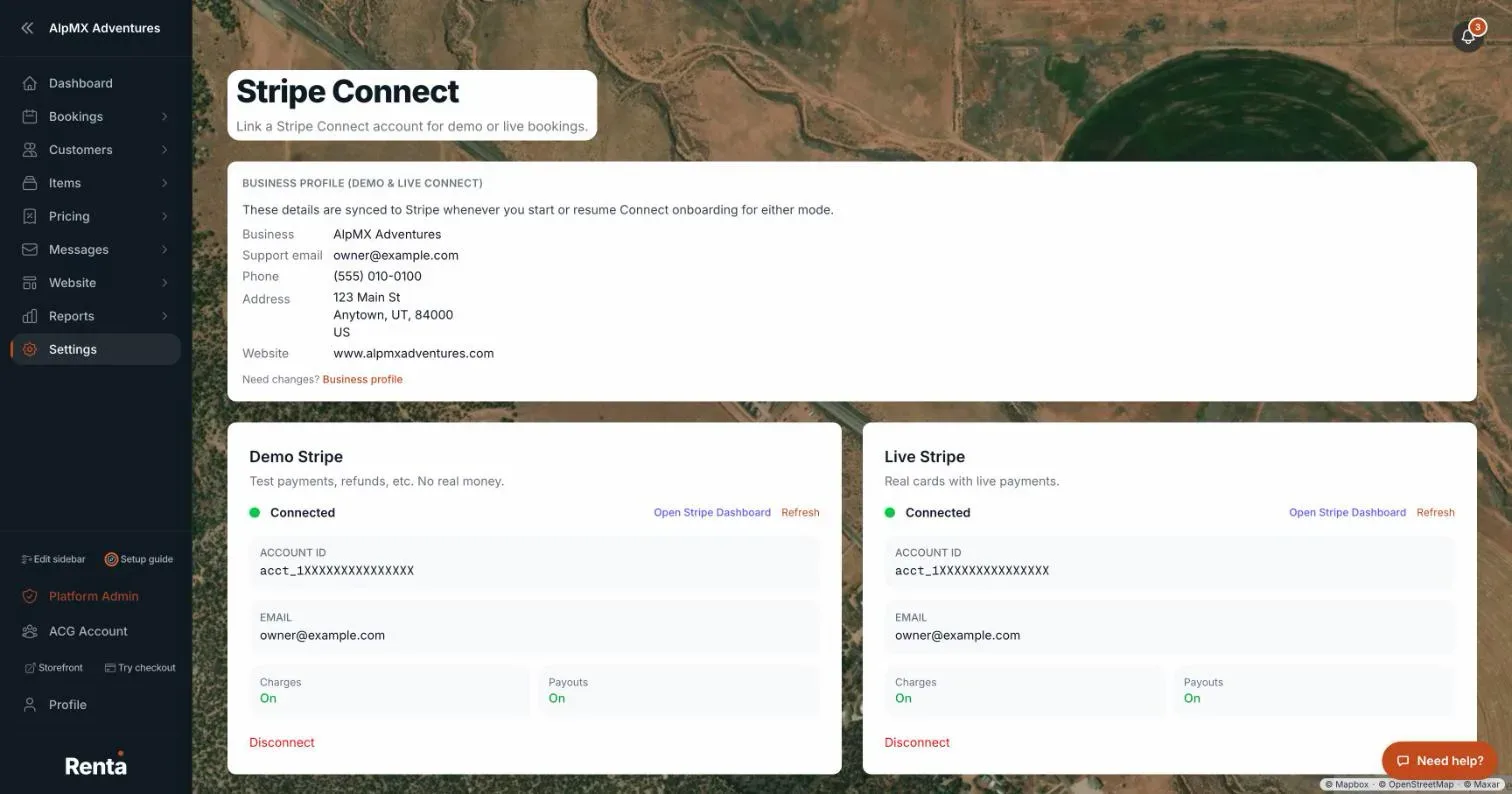 The Stripe page with the Demo Stripe and Live Stripe cards, each showing Connected, Charges and Payouts
How the page is laid out
From the top:
- Quick links. While either account is not linked yet, you see Connect demo Stripe (test mode) and Connect live Stripe (production). Each jumps down to its card. Once both are linked they disappear. If your account is frozen you see a Bookings frozen badge instead, and Stripe is switched off for a frozen account.
- Red warning banner. "Test (demo) Stripe account can't be reached" or "Live Stripe account can't be reached". It means Renta cannot see the Stripe account saved on your account, which almost always means it belongs to a different Stripe platform account. Until you reconnect it, checkouts for that side will fail. On the matching card, click Disconnect, then Connect with Stripe to link the right account.
- Business profile (demo & live Connect). Shows your business name, support email, phone, address and website. Renta sends these to Stripe whenever you start or resume onboarding, so you type less. Change them with the Business profile link under the card (it opens Settings → Business profile).
- Demo Stripe card, described as "Test payments, refunds, etc. No real money."
- Live Stripe card, described as "Real cards with live payments."
- Platform Fees card, showing your current plan and what Renta charges. See Renta's 2.5% platform fee.
What each card shows
Before you connect: a Connect with Stripe button. Clicking it takes you to Stripe to sign in or create an account and answer Stripe's questions, then brings you back.
After you connect:
- A heading, Connected (green dot) or Onboarding incomplete (yellow dot).
- Open Stripe Dashboard (only once you are Connected) and Refresh. Refresh asks Stripe for the latest status.
- Account ID and, if known, the Email on the Stripe account.
- Charges and Payouts, each reading On (green) or Pending (yellow).
- Charges: On means Stripe will accept card payments for you.
- Payouts: On means Stripe can send money from your Stripe balance to your bank account.
- If the card is not ready, a yellow note and an Open onboarding button. The note says "Finish onboarding in Stripe to enable charges." when Stripe still needs details from you, or "Stripe has not enabled charges on this account yet. Re-open onboarding and confirm requirements are complete." when you have submitted everything and Stripe has not switched charges on yet.
- Disconnect (red text). It asks "Disconnect Demo Stripe?" or "Disconnect Live Stripe?" and you confirm with Disconnect.
A card says Connected as soon as Stripe has turned Charges on, so the Payouts line can still be Pending at that moment.
Connecting for the first time
1. Open Settings → Payments (Stripe). 2. On the card you want (start with Demo Stripe to try things safely), click Connect with Stripe. 3. Follow Stripe's screens. Your business details are already filled in from the profile on this page. 4. When Stripe sends you back, the card shows Connected. If it says Onboarding incomplete, click Open onboarding and finish what Stripe asks for. 5. Repeat for Live Stripe when you are ready for real customers. See Going live: turning on real payments.
Example
Before launch, you connect Demo Stripe and run a practice booking with the test card. Later you connect Live Stripe. Practice bookings keep using Demo Stripe and never touch your real Stripe balance.
Good to know
- Demo and Live are two separate connections. Linking one does not link the other.
- Disconnecting only unlinks the account from Renta. It does not close your Stripe account.
- If Stripe shows an error about its platform profile ("loss responsibilities"), a link called Open Stripe Connect platform settings appears. The message says it is a setting on the Stripe platform account Renta runs, so contact Renta support if you see it.
- To see when money reaches your bank, see Stripe payouts: when money arrives and where to see it.
- For a payment that got stuck partway, see Failed or stuck booking payments.
Related articles
- Common questions: Stripe, payouts, and getting paidQuick answers about connecting Stripe, the Demo Stripe and Live Stripe cards, what Onboarding incomplete and Charges or Payouts Pending mean, bank details, disconnecting, and why only the Owner can connect or disconnect.
- Apple Pay, Google Pay, PayPal and other payment methodsRenta has no setting for individual payment methods. Customers pay through Stripe, which decides what to offer, so Apple Pay and Google Pay depend on Stripe, while PayPal, Venmo and similar are recorded by hand as Other.
- Demo mode has been retiredDemo mode no longer exists. Every business works on live data, and Practice customers are the safe way to try things.
- Where did it move? Old menu names and where they are nowA lookup table from the old names in the Renta menus and Settings page to where each one lives today, with a link to the help article for each.
- Common questions: the setup checklist and the setup guideQuick answers about the dashboard setup checklist (what each item checks and how to fix it) and the Setup guide tour (three levels, how a step works, skipping, replaying, and hiding it).
Still stuck? Ask the chat.
Was this helpful?