Coordinating deliveries and pickups for the day
How delivery runs are created, how to see today's drop-offs and collections, assign a driver, move each run through to done, and what happens when a booking is cancelled.
Where to find it
Dispatch (left sidebar)
If you deliver rentals to customers and collect them afterward, the Dispatch board is where you plan and track those trips. One trip is called a run: one drop-off (taking gear out) or one collection (bringing it back).
Where to find it
Click Dispatch in the left sidebar. Anyone who can view bookings can open it. Changing a run (assigning a driver, starting it, finishing it, cancelling it) needs permission to edit bookings.
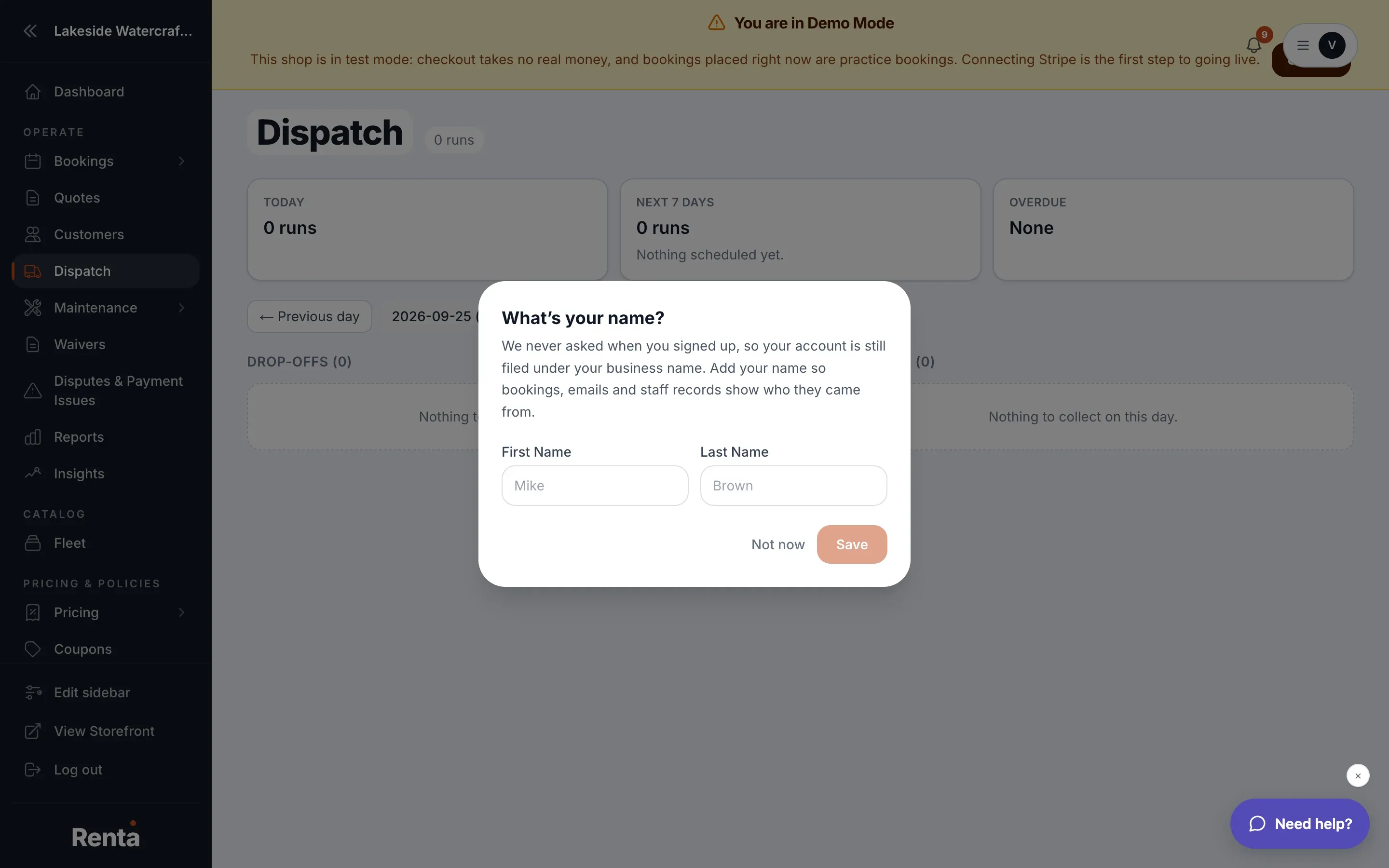 The Dispatch board with the Today, Next 7 days and Overdue boxes above the Drop-offs and Collections columns
How runs get created
You do not create runs by hand. A run appears automatically when a booking was actually charged for delivery, either because the customer used the delivery calculator at checkout or because you added delivery on the booking desk.
- One way delivery makes one run, a Drop-off.
- Round trip delivery makes two runs, a Drop-off and a Collection.
- The drop-off is timed for the booking's start and the collection for its end. The board has no button to change a run's time.
- If the customer typed a mileage instead of an address, the run is still created, with no address on file.
Delivery pricing itself is set up in the delivery step of your checkout. See Designing your checkout steps.
What's on the board
- Summary strip across the top.
- Today shows how many runs are due today and, in amber, how many still need a driver.
- Next 7 days shows the total, then one link per day that has runs. Click a day to open it.
- Overdue shows a count, in red when anything was left unfinished on an earlier day, or None.
- Day buttons. ← Previous day and Next day → move one day at a time. The current day is written as a date, with (today) beside it when it is today. Back to today appears when you are on another day.
- Drop-offs and Collections. Two columns for the day you are viewing, each with a count in brackets. An empty column says "Nothing to take out on this day." or "Nothing to collect on this day."
- Unfinished from earlier days. Runs from an earlier day that were never finished, shown above the two columns with their original day in red. Nothing vanishes when midnight passes.
If you run more than one shop, the board follows the shop switcher in the top bar and shows only that shop's runs.
What each run card shows
- The customer's name and phone number, and the booking number, which is a link to the booking. If the booking has no number, the link reads Open booking.
- A status label (see below).
- Where — the delivery address. If there is none it says "No address on file — the customer entered a mileage instead."
- When — the run's date and time in your business's time zone, or "No time set".
- A Driver drop-down and the action buttons.
Statuses
The label on each card, and the buttons that move it:
| Label | Meaning | Buttons you will see | |---|---|---| | Needs a driver | No one is assigned yet | Cancel run only | | Assigned | A driver is on it | Start run, Mark done, Cancel run | | On the road | The driver has set off | Mark done, Cancel run | | Done | Finished | None | | Cancelled | Called off | None |
A run with no driver cannot be started or marked done, so assign someone first. Done and Cancelled are final: a finished run cannot be reopened, and its driver drop-down is locked.
Assigning a driver
1. Open Dispatch and find the run. 2. Pick a person in the Driver drop-down. The status changes from Needs a driver to Assigned. 3. To take someone off, choose No driver yet. The run goes back to Needs a driver, even if it was on the road.
The drop-down lists every active member of your team, by name (or email if they have no name). If it is empty, a yellow note tells you to add someone under Settings → Team. See Inviting staff and setting their role.
The driver is told straight away. A notification titled "Drop-off assigned to you" or "Collection assigned to you" appears on their bell, with the address and time, and the same message is emailed to them within a few minutes. The time in that alert is written in UTC (universal time), not your local time, so check the board for the local time. Choosing the same driver again does not send a second alert.
Moving a run through the day
1. When the driver sets off, press Start run. The status becomes On the road. 2. At the door, press Mark done. The status becomes Done. 3. If the trip is not happening, press Cancel run. A cancelled run stays on the board, labelled Cancelled.
If someone else changed the same run a moment before you did, you will see "That run was changed by someone else — refresh and try again." Refresh the page and look again.
What happens when a booking is cancelled
When a booking is cancelled, or an unpaid reservation expires, its open runs are cancelled automatically and drop off the board. A driver who was already assigned gets an alert titled "Drop-off cancelled" or "Collection cancelled" saying the run is no longer needed. If you later reopen the booking, its cancelled runs come back as Needs a driver, with the old driver cleared.
Where else you will see delivery
- Dashboard. A Deliveries today card lists today's runs, with a badge such as "2 need a driver" and an Open Dispatch link.
- Booking page. A Delivery card lists that booking's runs with status, address and time, an Open dispatch link, and a Copy map link button that copies a Google Maps link to the address so you can send it to a driver.
Example
Before the team heads out, open Dispatch. The Today box says "3 runs" and "1 needs a driver". Pick a driver on the card still showing No driver yet. When she leaves the yard, press Start run, and press Mark done once the gear is handed over.
Good to know
- Only bookings with delivery appear here. A booking without delivery never shows up on this board.
- The Overdue list shows up to 50 unfinished runs from earlier days.
- Practice bookings cannot have a real driver assigned. You will see "Practice bookings don't get a real driver assigned." Taking a driver off is always allowed.
- If the board shows "Dispatch isn't switched on yet", the database update that stores delivery runs has not reached your account. Deliveries are still priced and charged normally.
- Delivery pricing is set up when you build the booking. See Creating a booking yourself.
Related articles
- Delivery and dispatch: common questionsQuick answers on the Dispatch board, why a delivery is missing, what the run statuses mean, assigning drivers, and why a driver menu or button is greyed out.
- Common questions: how a price is calculatedQuick answers on how a booking total is built, why it differs from the price on the item, and how tax, rounding, the Renta booking fee, hand-typed prices and extra charges work.
- Tracking which bookings still need a signed waiverSee upcoming pickups without a signed waiver, and send or resend the waiver link.
Still stuck? Ask the chat.
Was this helpful?