Inviting staff and setting their role
Add team members by email and choose whether each one is an Owner, Manager, or Staff.
Where to find it
Settings → Team → Team Members tab
The Team page is where you invite people to your Renta account and choose their role. There are three roles: Owner, Manager, and Staff.
Where to find it
Settings → Team, on the Team Members tab (the other tab is Permissions). Only Owners and Managers can open the page.
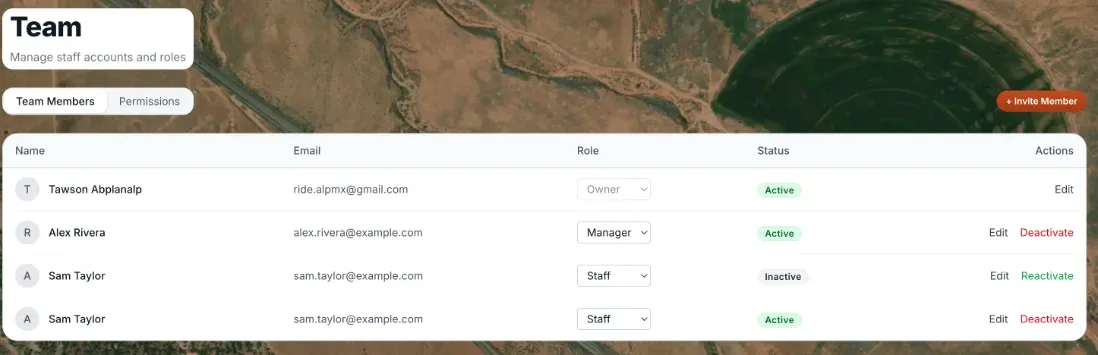 The Team page showing staff rows with roles and the Invite Team Member button
How it works
- + Invite Member — opens the Invite Team Member form with Name, Email, and Role (Staff or Manager; Staff is the starting choice). Press Send Invite and Renta emails them an invitation.
- Table — one row per person with Name, Email, Role, Status (active or inactive), and Actions.
- Role dropdown — Staff, Manager, or Owner. It is greyed out on Owner rows. You cannot change your own role, a Manager cannot change another Manager or an Owner, and only an Owner can promote someone to Owner.
- Edit — opens Edit Team Member with Name and Email; press Save Changes. The email can only be edited while the person has not yet signed in; after that it is their login and only they can change it. Managers can edit only Staff-level people.
- Deactivate and Reactivate — removes or restores access. Only an Owner can deactivate, nobody can deactivate themselves, and Owner rows have no Deactivate button. There is no permanent delete.
Example
You hire a front-desk employee. Press + Invite Member, enter their name and email, leave the role on Staff, and press Send Invite. They open the link in the email, press Accept Invite, and sign in with a one-time code sent to their email.
Good to know
- To make someone an Owner, invite them as Manager first, then an Owner changes their Role to Owner.
- Renta limits how many active team members you can have. On the free trial the default is 2, and the form says "You've reached the demo limit"; on a live account the default cap is 5 active team members (the Owner counts), and you contact team@rentalabs.io to raise it. The cap is a default Renta can change.
- What each role can do is on the Permissions tab. The four sensitive extras are covered in Permission overrides.
- For more quick answers see Common questions: team members and permissions.
What Staff cannot do
The Staff role is built for the front desk: bookings, check-in and out, customers, fleet, waivers and maintenance. A few things stay with Managers and Owners on purpose.
- No refunds. Staff do not have the Issue refunds permission. The refund option is hidden for them on a booking, and the server also turns down any refund or any cancellation that would refund money.
- No money reports. Staff do not have View money reports. They keep View Website & Google insights, but the revenue line on the search funnel card is left out for them.
- Cancelled bookings. A Staff member cannot close out a cancelled or expired booking by refunding it. An Owner can let them close it out by *keeping* the balance (no refund) with the switch described in Fine-tuning what Managers and Staff can do.
- Owner-level settings. Some settings can change how your whole business runs or how money is taken, so Staff cannot change them. They need these permissions, which Managers and Owners have: Manage payments for 3D Secure and photo ID verification, Manage API keys & webhooks for analytics tags, and Edit content for the custom code on your public website. The custom code that runs inside your admin (it runs in every team member's session) can only be changed by an Owner.
- These settings only save from their own page. If a request tries to save one of them any other way, Renta refuses with a message such as `"payments_3ds" can't be saved here. Change payment security in Settings › Checkout flow.` That applies to every role, including Owners.
Related articles
- Dashboard — common questionsQuick answers on every dashboard card, number and button, how to rearrange or hide widgets, what the calendar colors mean, and why a card is missing or looks empty.
- Connecting an AI assistant (Claude, ChatGPT and other MCP tools)Let your own AI assistant, such as Claude or ChatGPT, read and (if you allow it) change your Renta data, using a step-by-step connect wizard or a key you create yourself, and choose exactly what it may do.
Still stuck? Ask the chat.
Was this helpful?