Fleet health and maintenance snapshot
The dashboard cards showing how many of your units are available, rented out or in maintenance, what maintenance needs doing, and what your fleet is worth.
Where to find it
Dashboard → Fleet Health, Maintenance Snapshot, Maintenance Cost and Fleet Depreciation widgets
These widgets show how many of your units are ready to rent, which maintenance needs doing, and roughly what your fleet is worth.
Where to find it
Look among your dashboard's widgets for the cards titled Fleet Health, Maintenance Snapshot, Maintenance Cost and Fleet Depreciation.
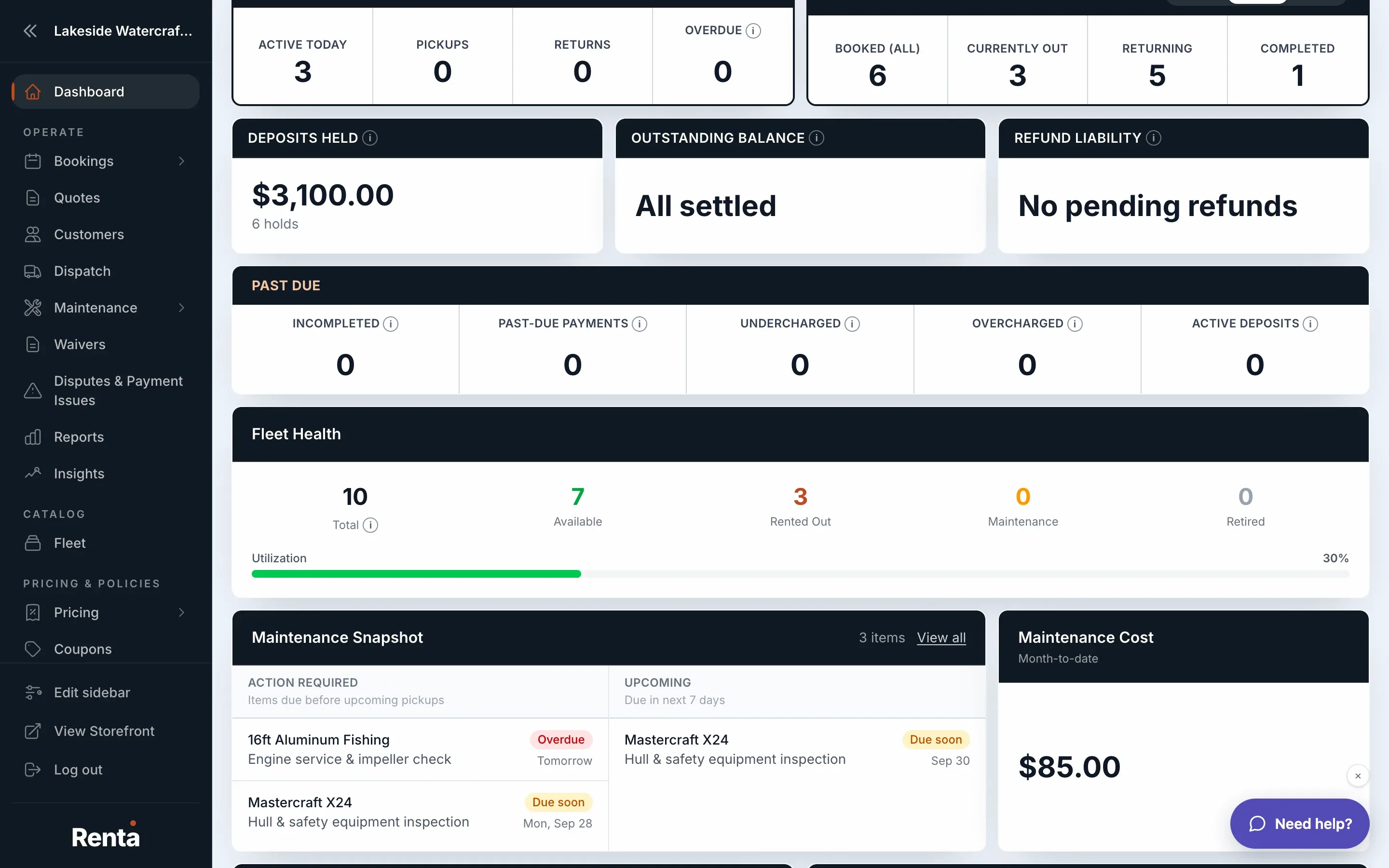 The Fleet Health stat card and Maintenance Snapshot list
How it works
- Fleet Health — counts of your units (one physical machine each, not listings): Total, Available, Rented Out, Maintenance and Retired, plus a Utilization bar with a percentage. Hover over Total for a note that an item with 3 units adds 3 here, so it will not match the Fleet page, which counts listings. Hover over (or tap) a number to see the items behind it. With no items yet it says "No fleet items added yet".
- Maintenance Snapshot — two columns. Action Required ("Items due before upcoming pickups") lists maintenance that is overdue or due soon, each row marked Overdue or Due soon with its due date. Upcoming lists tasks due in the next 3 days, the next 7 days or this month, following the view you have chosen on the dashboard calendar; an estimated date reads "(est.)". The header shows "All clear" or a count such as "3 items", and View all opens the Maintenance page. Click a row to open that item's maintenance.
- Maintenance Cost — what you have spent on maintenance so far this month ("Month-to-date"). With nothing logged it says "No logs this month".
- Fleet Depreciation — Purchase Cost, Current Value, Depreciation (the value lost so far) and Items Tracked, with a View all link. It says "Set purchase price to track depreciation" until at least one item has a purchase price.
For example: if Action Required shows a jet ski with an oil change marked Overdue, click the row to open that item's maintenance and log the service there.
Good to know
- These are summaries. The full maintenance tools (schedules, logs and per-item history) live on the Maintenance page.
- Maintenance Snapshot only looks at the days around upcoming pickups, so its count can be lower than the totals on the Maintenance page. Use View all for the full list.
- For a monthly, reportable version of maintenance spend and fleet utilization, see How hard your fleet is working.
Related articles
- Dashboard — common questionsQuick answers on every dashboard card, number and button, how to rearrange or hide widgets, what the calendar colors mean, and why a card is missing or looks empty.
- What's on your dashboardThe at-a-glance widgets showing today's rentals, deliveries, activity, and fleet health when you open Renta.
- Rearranging or hiding dashboard widgetsDrag widgets into a new order, hide the ones you don't use, and restore the default layout any time.
- Revenue trend, traffic, and popular itemsThe dashboard charts and lists for your revenue over the last 6 months, storefront visitors, new and returning customers, and your most-booked items.
- Google Search and review widgets on your dashboardDashboard cards for your Google search clicks, Google reviews and serious SEO problems.
Still stuck? Ask the chat.
Was this helpful?