Tracking one physical unit's condition and history
A single unit's location, purchase price, meter readings, maintenance status, and every booking it's had.
Where to find it
Fleet → open an item → Details → a unit
When an item has individual units, each physical unit gets its own page showing its identity, current location, maintenance status, and complete rental history — everything about that one piece of equipment.
Where to find it
Fleet → open an item → open a specific unit. (If an item has only one unit, opening the item goes straight here.)
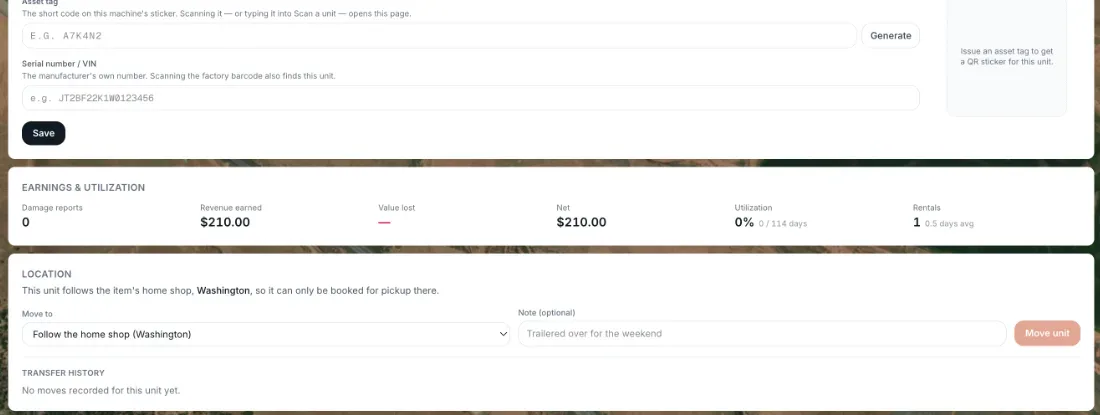 A unit's identity, location, and rental history
How it works
- Unit Identity Card — the unit's nickname (e.g. "Jet Ski #2"), a read-only sequence number, an editable Asset Tag (used for QR scanning), a Serial Number, and its current status (Available, In Maintenance, Unavailable, or Retired).
- Location card — says where the unit can be booked for pickup. If the unit has no shop of its own it reads "This unit follows the item's home shop, [shop name], so it can only be booked for pickup there.". To move it, pick a shop under Move to, add an optional note, and click Move unit. The first choice in the list, "Follow the home shop ([shop name])", sends the unit back to following the item. Every move is listed under Transfer history. If you have no pickup locations yet, add one under Settings → Pickup locations first.
- Maintenance Status — service tasks due, overdue, or upcoming for this unit, with a red "Overdue" badge if anything's past due.
- Rental History — every booking this unit has ever been assigned to, with dates, status, and price. A summary row shows Rentals, Utilization, Revenue earned, Value lost, Net, and Damage reports.
Example
If "Jet Ski #2" has gone out on 40 bookings averaging 3 days each since you added it 200 days ago, its Utilization figure reflects how many of those 200 days it was actually earning rental income.
Good to know
- Asset value and depreciation for this unit live in their own section — see How a unit's value depreciates over time.
- Damage and pre-rental photos for this unit are covered in Damage reports and checkout photos on a unit.
- To sell a unit and take it out of service for good, use Mark as sold under the unit's name — see Marking a unit as sold.
- A unit set to its own shop overrides the item's home shop. The home shop and a "Make all N follow the home shop" button are on the item's Availability tab — see What is a buffer window?.
- Unit pages exist once an item has units listed on its Identity step. That happens when variants are set to Assign per unit (the default for new items) or Enable maintenance tracking is switched on. An item set to Bulk with neither usually has no unit pages. The old Tracking Mode choice (Individual or Bulk) is no longer in the item editor. See Item variants: color, size, and other options.
Related articles
- Common questions: individual units (machines, vehicles)Quick answers about adding, naming, moving, retiring and selling one physical machine, plus its QR sticker, scanning, meter readings, booking history, damage reports and photos.
- Maintenance templatesBuild a reusable set of service tasks and inspection items once, then apply it to many machines, and understand exactly what applying does and does not change.
- Logging service and adjusting tasksHow to record a finished service, add a recurring or one-time service, change or delete a task, log one service on many machines, defer a task, correct meters and fix mistakes in the history.
- Printing QR stickers for your equipmentPrint a QR sticker for each tracked unit, issue or replace a unit's asset tag, and see what is on a sticker.
- Common questions: maintenance and serviceQuick answers about the Maintenance page, including logging a service, overdue and due soon statuses, deferring a task, updating meters, putting a unit into maintenance, templates and the daily email.
Still stuck? Ask the chat.
Was this helpful?