Scanning a unit's QR code
Find one specific unit fast by scanning its sticker with a camera, or by typing its asset tag or serial number, and what each result means.
Where to find it
Fleet → Scan (button in the Fleet page header)
If you rent several of the same item, you often need one particular unit. Scanning its sticker (or typing its code) takes you straight to that unit's page, so you do not have to search the fleet list.
Where to find it
On the Fleet page, click Scan in the header (its tooltip reads "Find a unit by its QR sticker or serial number"). The page is titled "Scan a unit". You can also scan a printed sticker with your phone's own camera app, which opens the same page.
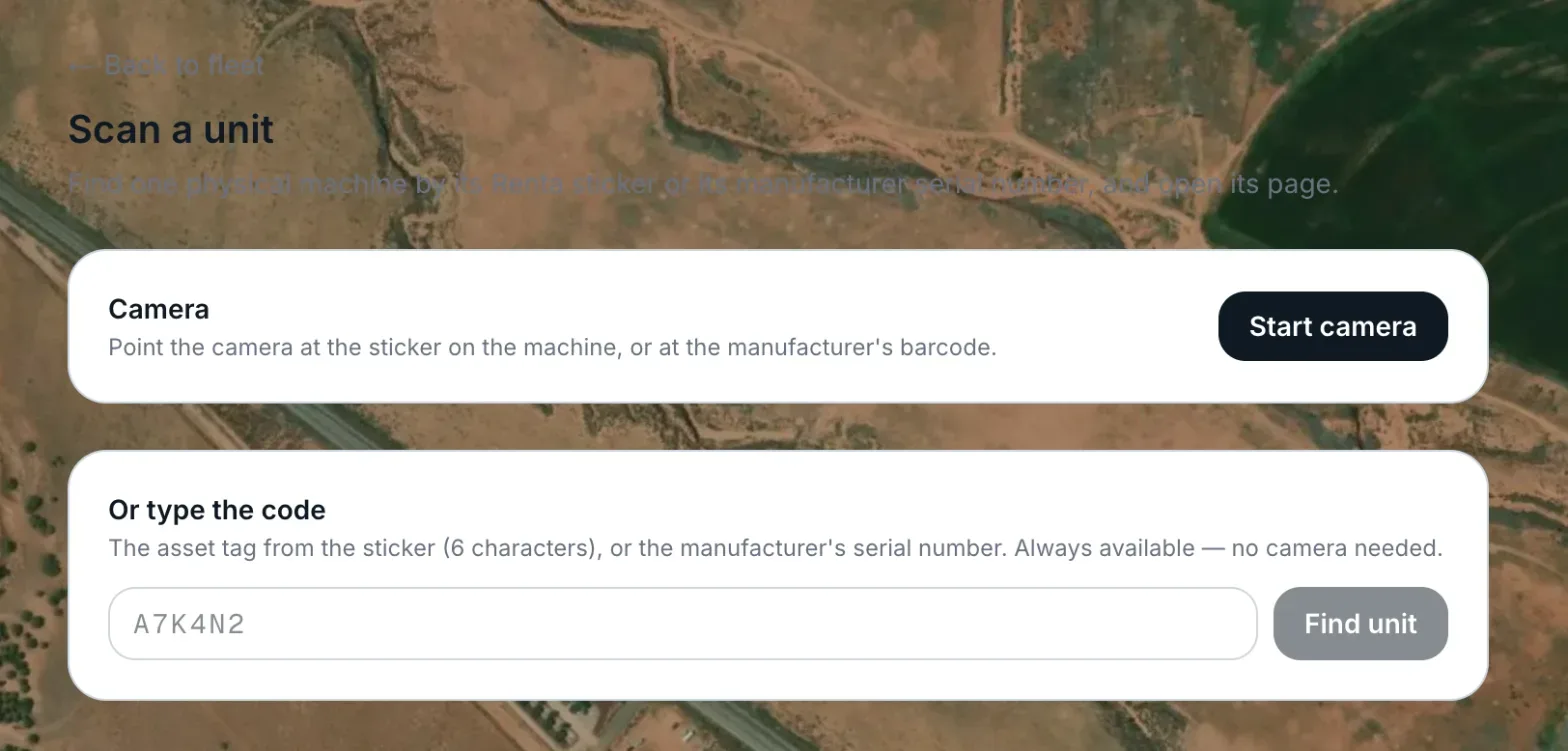 The Scan a unit page with the Camera card and the Or type the code box
How it works
- Camera card — click Start camera to read a sticker, and Stop camera to turn it off. It reads QR codes and the common barcode types, so factory barcodes work too. If the browser blocks the camera you will see "No camera access. Allow the camera in your browser settings, or type the code below."
- Or type the code — type the asset tag from the sticker (6 characters, like A7K4N2) or the manufacturer's serial number, then click Find unit (it shows "Looking…"). The note says it is always available, with no camera needed.
- On an iPhone, or any browser that cannot read barcodes itself, Start camera is greyed out with a note: "This browser cannot read barcodes on its own (iPhones are the common case). Use the phone's own Camera app on the QR sticker — it opens the right unit — or type the code below. Everything still works."
What you see after a scan or search
- One match — you go straight to that unit's page and the camera stops. See Tracking one physical unit's condition and history.
- No match — "No unit here carries (the code). Check the code, or open the unit and set its tag on the unit page."
- Several units share that serial number — a list titled "N units share that serial number — pick one" shows each unit with its item, nickname and tag or serial. Pick the right one. This only happens with serial numbers, because asset tags are unique to each unit.
- Not a Renta code — "That is not a Renta asset tag or a serial number. If you scanned a QR code, it belongs to something else."
How a code is matched
Renta tries the asset tag first, then the serial number. For asset tags it does not matter if you type capitals or small letters, or add spaces, hyphens, dots or underscores. The letters I and L are read as 1, O as 0, and U as V, because those are easy to mix up. Serial numbers also ignore capitals unless the serial contains a * symbol. Everything is searched only within your own business.
Example
A guest says "jet ski 3 has a scratch." You open Scan on your phone, point the camera at the sticker on the seat, and land on that unit's page to log the damage.
Good to know
- Every printed sticker links to this same finder. See Printing QR stickers for your equipment.
- A unit only has a code if it is tracked individually and has an asset tag. Items tracked only as a bulk count have no per-unit codes.
Related articles
- Common questions: individual units (machines, vehicles)Quick answers about adding, naming, moving, retiring and selling one physical machine, plus its QR sticker, scanning, meter readings, booking history, damage reports and photos.
- Maintenance templatesBuild a reusable set of service tasks and inspection items once, then apply it to many machines, and understand exactly what applying does and does not change.
- Marking a unit as soldRecord the sale of one physical unit so it stops being bookable, leaves your asset totals, and shows its gain or loss against book value.
- Logging service and adjusting tasksHow to record a finished service, add a recurring or one-time service, change or delete a task, log one service on many machines, defer a task, correct meters and fix mistakes in the history.
- How a unit's value depreciates over timeTrack a unit's purchase price, current value, and how its value declines as it's used.
Still stuck? Ask the chat.
Was this helpful?