How customers find their booking at the kiosk
At Pick up and Return, the customer types the last name and phone number on their booking, and both must match the same customer. Pick up finds today's bookings, and Return finds rentals that are out.
Where to find it
At the kiosk home screen → Here to pick up, or Start return
At Pick up and Return, customers find their own booking by typing their last name and phone number. Both must match the same customer on the booking, so nobody can open a booking with only a name or only a phone number.
Where to find it
On the kiosk home screen, tap Here to pick up (the screen is titled Find your reservation) or Start return (titled Return your gear). Both ask for Last name and Phone number, then Find my reservation.
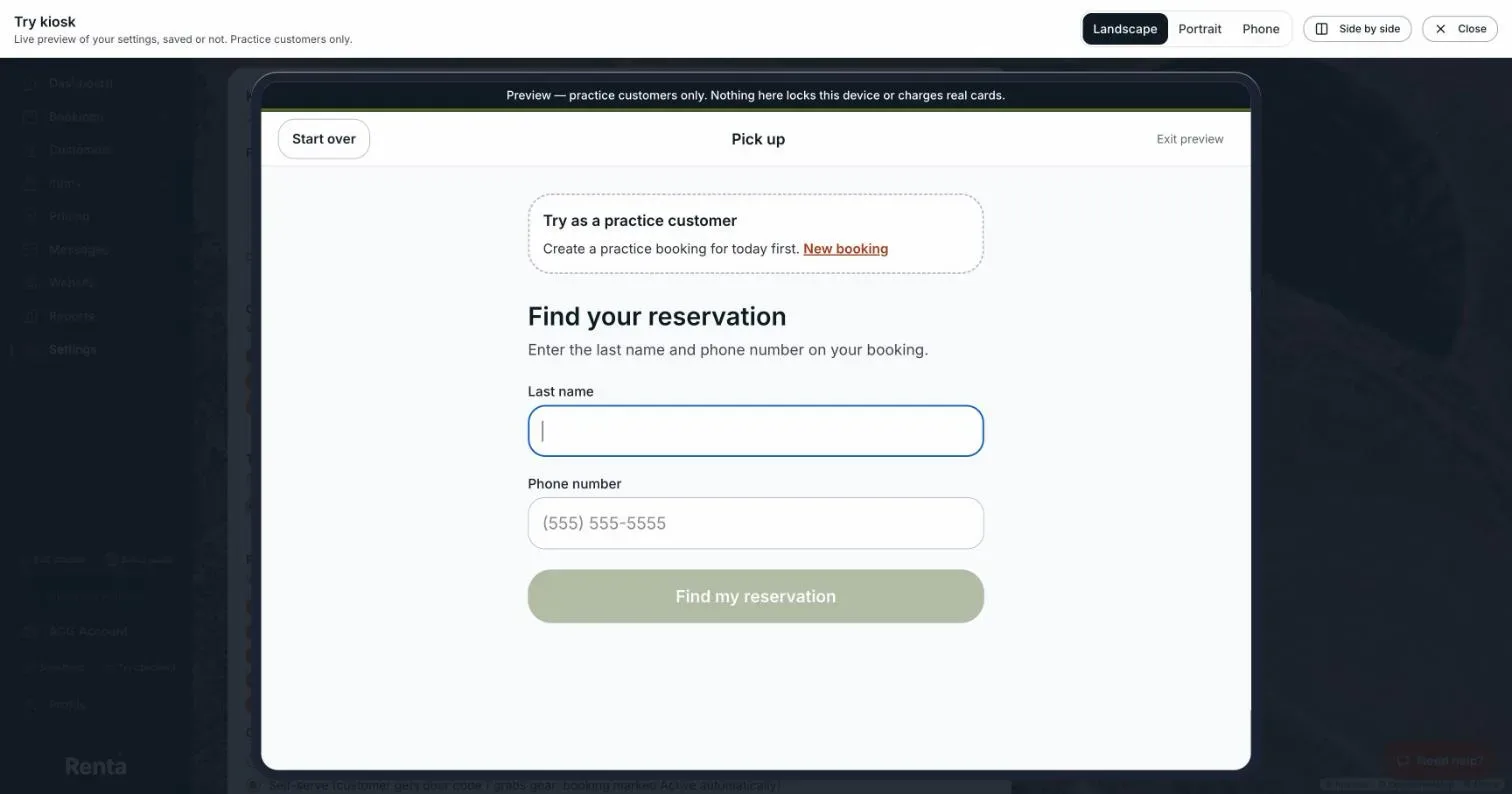 The Find your reservation screen with the Last name and Phone number boxes
How it works
- The button stays greyed out until the last name is filled in and the phone number has at least 7 digits.
- Last name is matched against the end of the customer's full name on the booking. For "Maria de la Cruz", both "Cruz" and "de la Cruz" work, and "Maria" does not. Capital letters, accents and punctuation do not matter, so "OBrien" matches "O'Brien". A Jr, Sr, II, III or IV at the end of the name is ignored.
- Phone number is compared on the last 10 digits, so spaces, dashes and a country code do not matter.
- The name and phone are those of the person who made the booking. A rider added to the booking cannot use their own name.
- With one match, the customer goes straight on. With several, Which booking? lists them by pickup time ("Return" time and confirmation number below each) and they tap the right one.
Which bookings can be found
- Pick up finds a booking only if its pickup is today in your business's time zone, and its status is Pending, Pending payment, Confirmed or Active.
- Return finds only bookings that are Active, meaning out with the customer, including late ones.
Good to know
- Every miss gets the same message: "We couldn't find a reservation matching that name and phone." That is on purpose, so the kiosk cannot be used to find out who your customers are. It never shows a list of names.
- Each tablet allows 12 tries in 5 minutes and 60 in an hour. Past that the customer sees "Too many tries. Please wait a few minutes or ask a member of staff." Other tablets are not affected.
- After a customer's booking opens, the address no longer holds their details, so refreshing the page sends the tablet back to the home screen.
- If a customer cannot be found, see Kiosk troubleshooting: common questions.
Related articles
- What customers do at the kiosk: common questionsQuick answers on Reserve now, finding a booking by last name and phone, pick-up steps, Almost there, door codes, returning gear, damage, tips and when the kiosk starts over.
- Tips at the kioskHow customers leave a tip at Return (preset percentages, a custom amount, or no tip), the Renta fee charged on top, where a tip shows on the booking, and why a tip never counts toward rent.
- Pick up at the kioskHow a customer picks up a reservation at the kiosk, which steps you can require, why a missing deposit hold sends them to staff, staff hand-off versus self-serve, and the Before you ride checklist.
- Returning gear at the kioskWhat a customer does at Return (condition photos, return checklist, damage report, tip and review QR code), and the two ways it finishes, either a staff review or automatic finish.
- Reserve now: booking a walk-in at the kioskA walk-in customer books gear on the kiosk using your normal online checkout, starting today, and the kiosk then continues straight to pick-up. Reserve now is switched off in Try kiosk.
Still stuck? Ask the chat.
Was this helpful?