Tips at the kiosk
How customers leave a tip at Return (preset percentages, a custom amount, or no tip), the Renta fee charged on top, where a tip shows on the booking, and why a tip never counts toward rent.
Where to find it
At the kiosk during Return → Leave a tip. Settings at Kiosk → Kiosk configuration → Return → Tip. Tips show at Bookings → open a booking → Payments & Documents tab
At Return, after the return steps, customers can leave a tip for your team. They pick a percentage, type their own amount, or press No tip. The tip is a separate card charge, with Renta's fee added on top, and it never counts toward the rent.
Where to find it
- For customers: the Leave a tip step of Return, asking "Would you like to leave a tip?".
- To turn it on or off and change the percentages: Kiosk → Kiosk configuration → Return, the Tip tick box and the Tip buttons boxes. See Kiosk settings: what customers see and do.
- To see a tip: Bookings → open the booking → Payments & Documents tab.
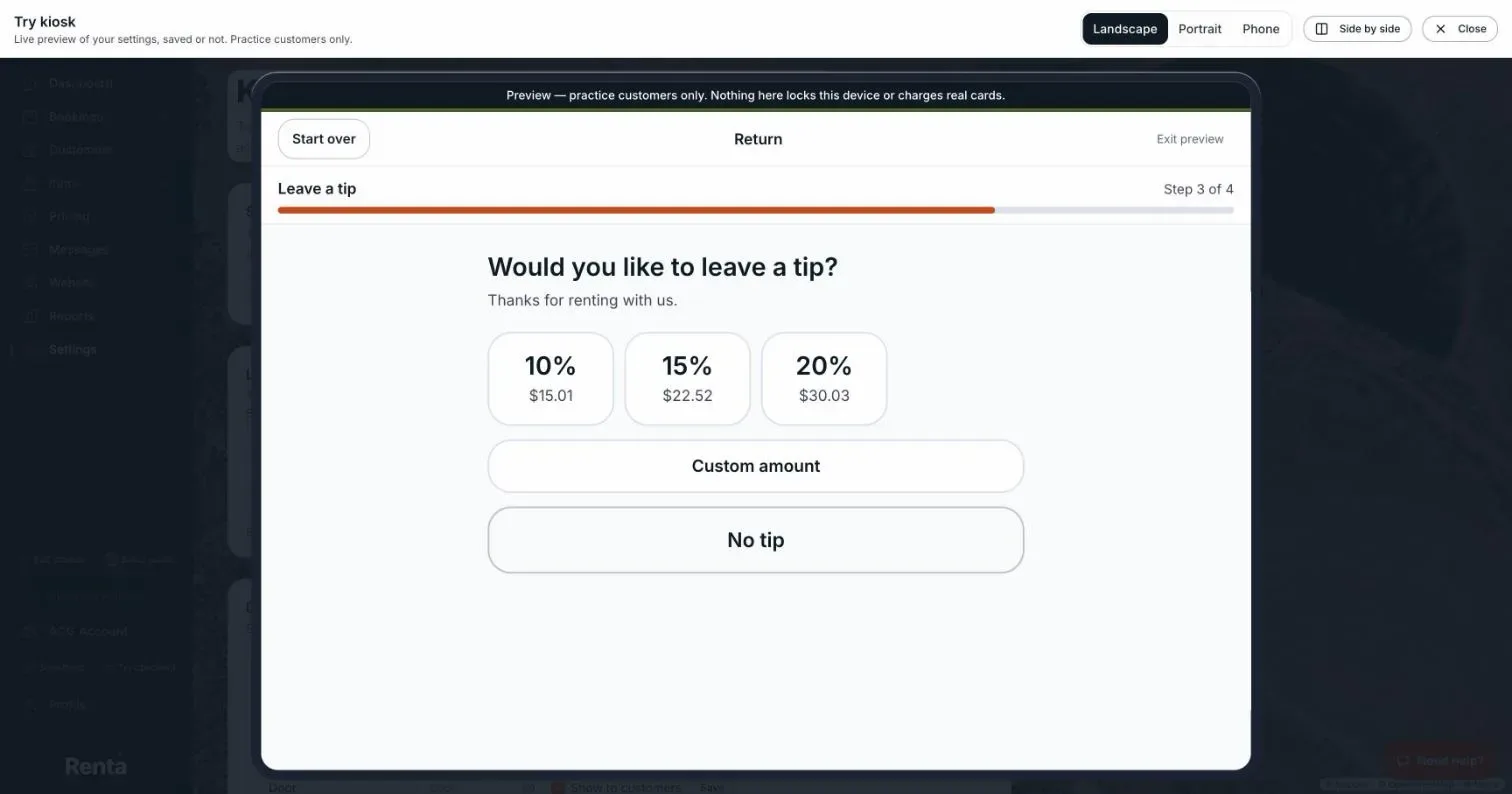 The tip screen with percentage buttons, Custom amount and No tip
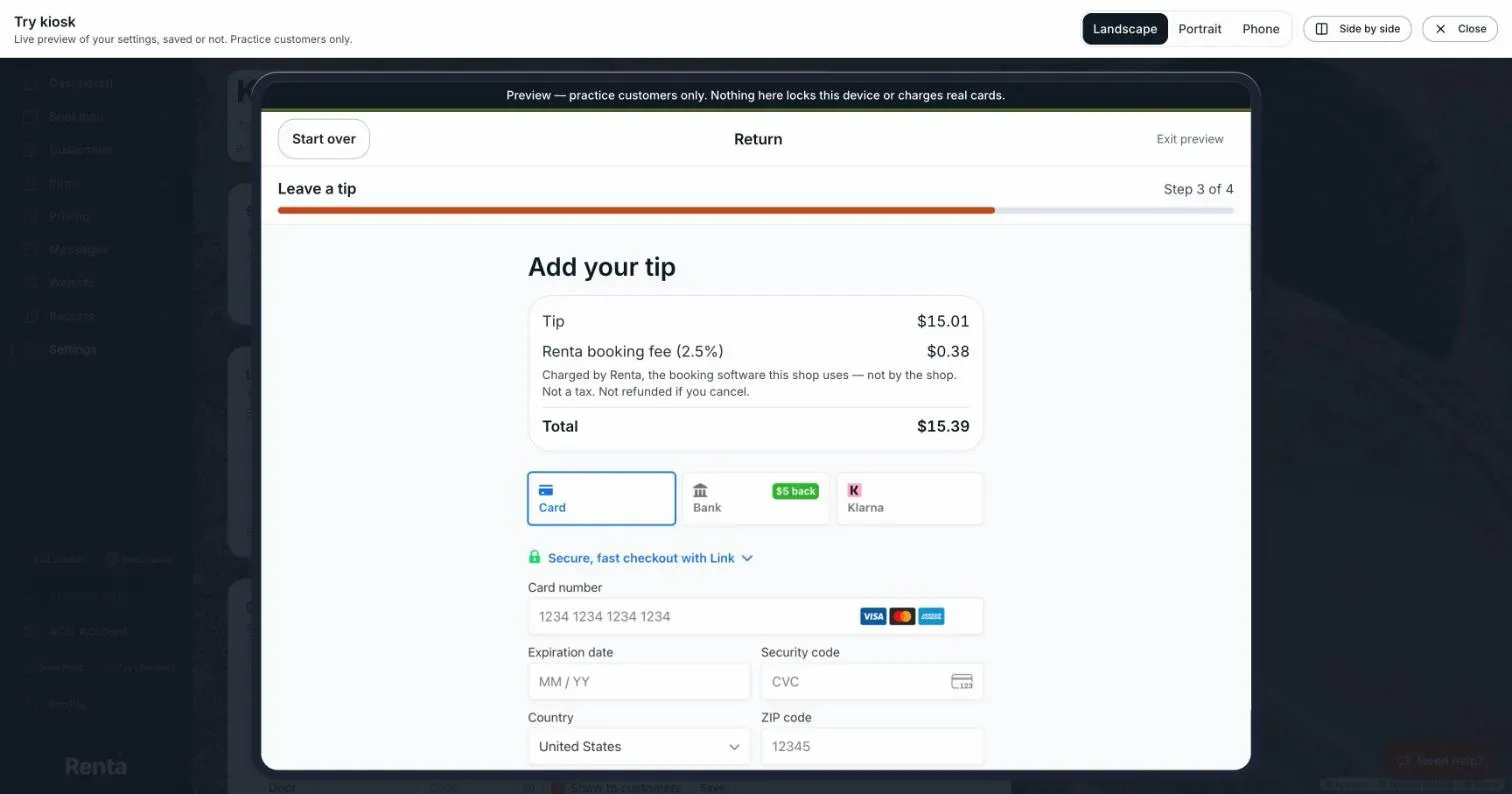 The Add your tip screen with the tip, the Renta booking fee and the total
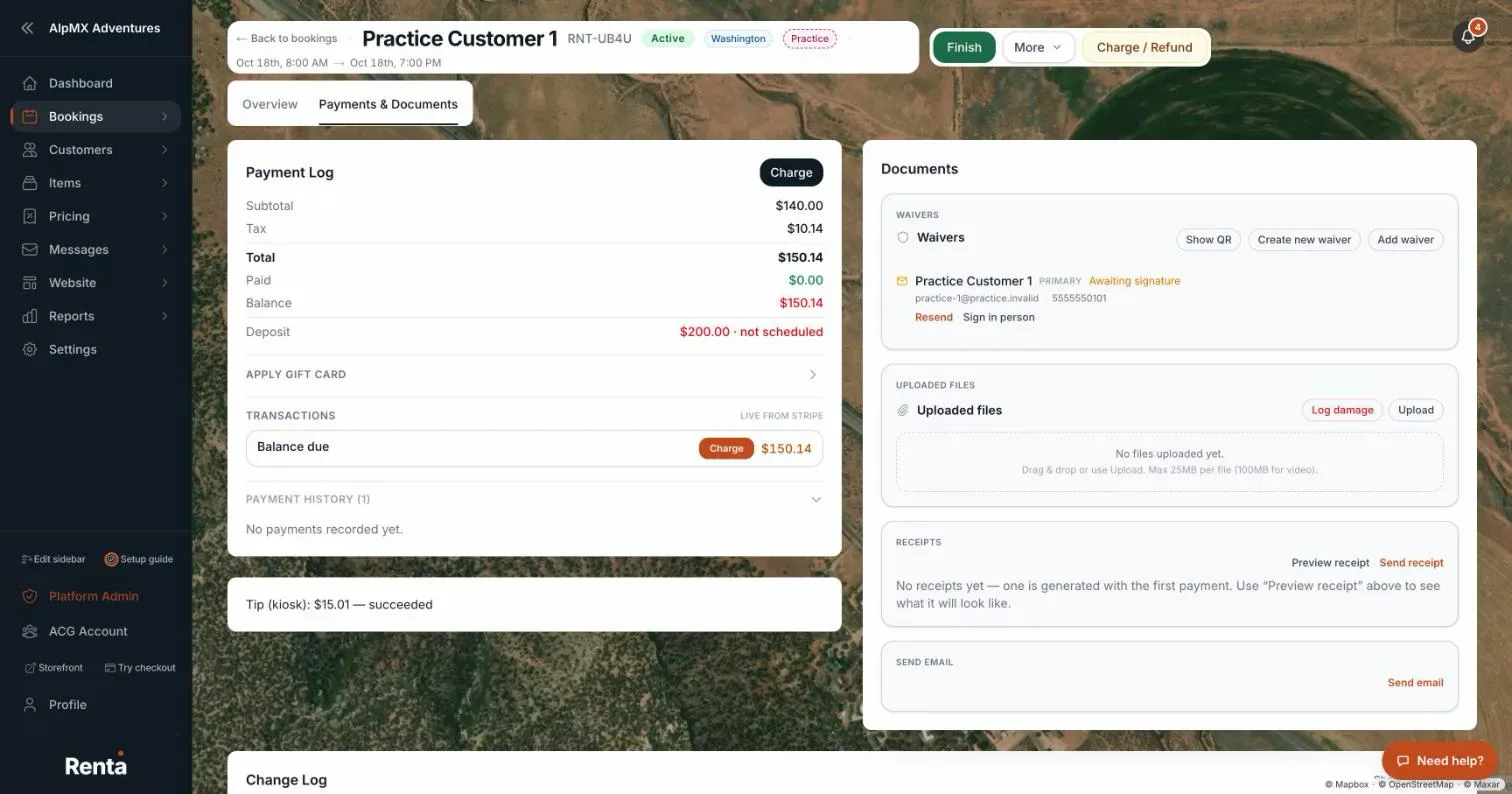 The Tip (kiosk) line on a booking's Payments & Documents tab
What customers can choose
- Preset buttons: a percentage and its dollar amount, such as "15%" and "$6.00". You start with 10%, 15% and 20%, and you can change the numbers to any whole numbers from 1 to 100 that are all different. A preset that works out to less than $1 is left off, so a very small rental may show only Custom amount and No tip.
- Custom amount: a keypad where digits fill in from the right like a card machine, so pressing 1, 5, 0, 0 reads $15.00. Then Continue, or Back.
- No tip: a large button, so skipping is as easy as tipping.
Percentages are worked out on the booking's rental total. A security deposit that was captured is not counted.
Limits: the smallest tip is $1. The largest is the rental total or $500, whichever is higher. Above that the kiosk says "The largest tip we can take here is [amount]. Please ask a member of staff."
The Renta fee on top
The next screen, Add your tip, lists the Tip, a line such as Renta booking fee (2.5%), and the Total, and a Pay button with that total. The fee is the same rate as on the customer's booking, added on top, so Renta's fee does not come out of the tip. Stripe's normal card processing fee still applies to the charge, as it does on your bookings. For example, at a 2.5% rate a $10 tip charges the card $10.25: your business receives the $10.00 tip (before Stripe's processing fee) and Renta receives $0.25. Under the fee line the customer reads "Charged by Renta, the booking software this shop uses — not by the shop. Not a tax. Not refunded if you cancel." Above Pay a line reads "By paying, you agree to Renta's Renter Terms, including the [fee amount] Renta booking fee, which is not refunded if you cancel." Renter Terms opens in a window on the same screen. See Renta's 2.5% platform fee.
The customer enters their card on the tablet (Stripe, the company that processes card payments, takes it). The tablet does not keep the card. Change amount goes back to the choices. The earlier amount is cancelled as soon as the customer starts a new tip, and the old payment form is discarded, so it cannot be paid from the kiosk. After paying, "Thank you!" shows for 5 seconds, or until the customer presses Done.
Where tips show on the booking
On Payments & Documents, below Payment history, a line such as "Tip (kiosk): $10.00 — succeeded" appears. The status can be succeeded, refunded or failed. A tip that was started but never paid is not shown. A fully refunded tip changes to "refunded". A partial refund leaves it as succeeded.
Tips never count toward rent
A tip does not change the booking's total, its balance owed, or its payment history, and it is not part of rent or deposit. It is only a record of money the customer chose to give your team.
Good to know
- Tips are offered only on a rental that has started (Active or Completed). Otherwise the customer sees "Tips can be left once your rental has started." If Tip is unticked in your settings, the tip step is simply skipped. Only if you switch Tip off while a customer is already on the tip screen do they see "This shop isn't taking tips at the kiosk." and Continue.
- A practice booking's tip runs in Stripe's test mode, so no real money moves. See Testing the kiosk with practice customers.
- If a customer's bank disputes a tip, the owners get a notification, "A kiosk tip was disputed", and decide whether to respond in the Stripe dashboard. Disputes on tips are kept apart from disputes on the rental.
- Tips are charged on your connected Stripe account, like your bookings. See Connecting Stripe to accept payments.
Related articles
- Pick up at the kioskHow a customer picks up a reservation at the kiosk, which steps you can require, why a missing deposit hold sends them to staff, staff hand-off versus self-serve, and the Before you ride checklist.
- Returning gear at the kioskWhat a customer does at Return (condition photos, return checklist, damage report, tip and review QR code), and the two ways it finishes, either a staff review or automatic finish.
- Reserve now: booking a walk-in at the kioskA walk-in customer books gear on the kiosk using your normal online checkout, starting today, and the kiosk then continues straight to pick-up. Reserve now is switched off in Try kiosk.
- How customers find their booking at the kioskAt Pick up and Return, the customer types the last name and phone number on their booking, and both must match the same customer. Pick up finds today's bookings, and Return finds rentals that are out.
- When automatic finish hands a return to staffEvery case where a kiosk set to finish returns automatically sends the return to staff instead, including damage, money owed, a cash deposit, a deposit step that is switched off, and charges staff already added.
Still stuck? Ask the chat.
Was this helpful?