Returning gear at the kiosk
What a customer does at Return (condition photos, return checklist, damage report, tip and review QR code), and the two ways it finishes, either a staff review or automatic finish.
Where to find it
At the kiosk home screen → Start return. Settings at Kiosk → Kiosk configuration → Return
At Return, a customer finds their rental, takes a few photos, ticks a checklist if the rental has one, says whether anything was damaged, and can leave a tip and a review. How the rental ends depends on When the return finishes: either a team member checks it, or the kiosk finishes it automatically when nothing is wrong.
Where to find it
- For customers: the kiosk home screen → Start return, then the last name and phone on the booking. See How customers find their booking at the kiosk. Only Active rentals can be found, including late ones. The home screen button is called Returning in your settings.
- For you: Kiosk → Kiosk configuration → Return.
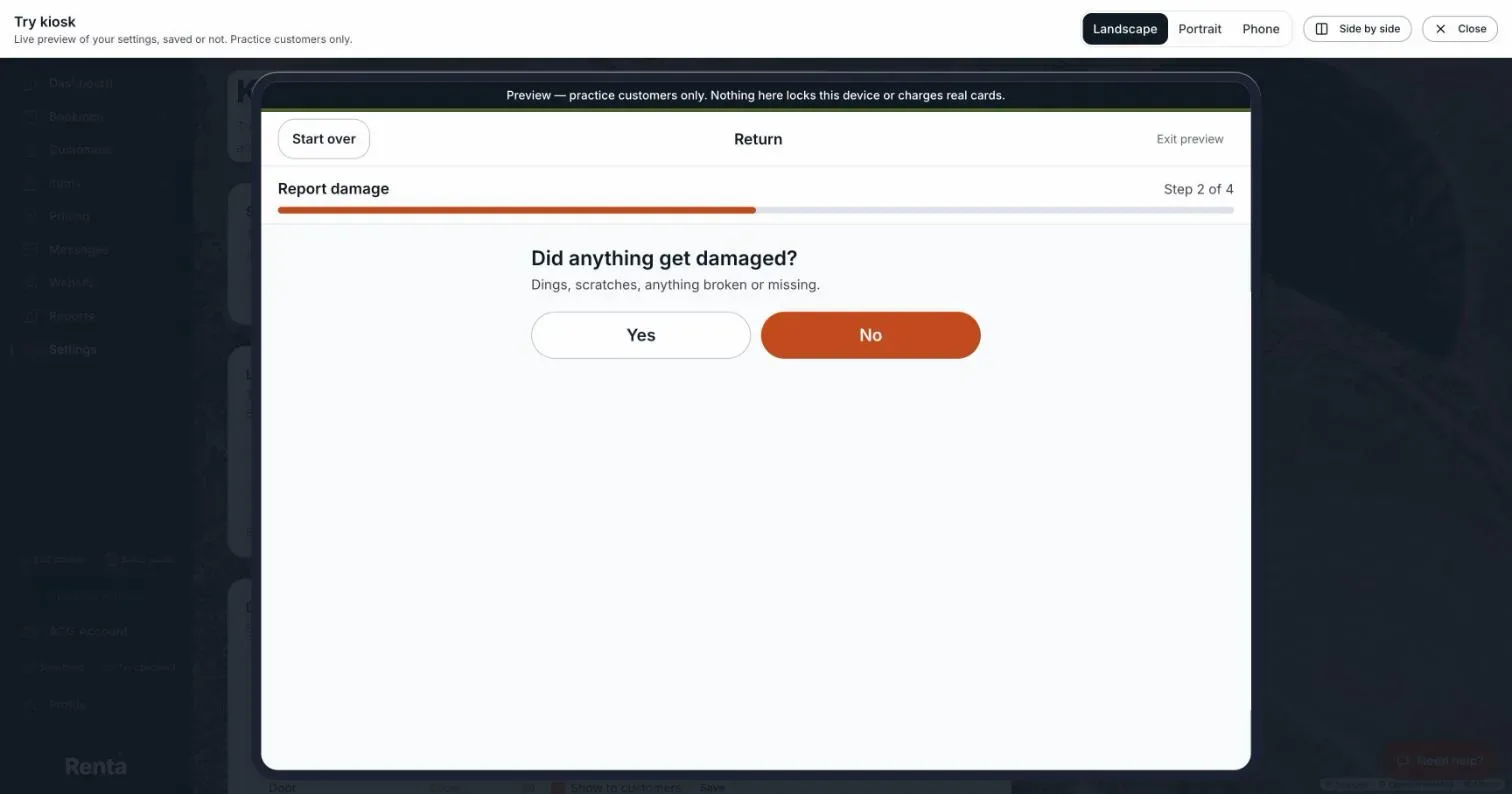 The Did anything get damaged question
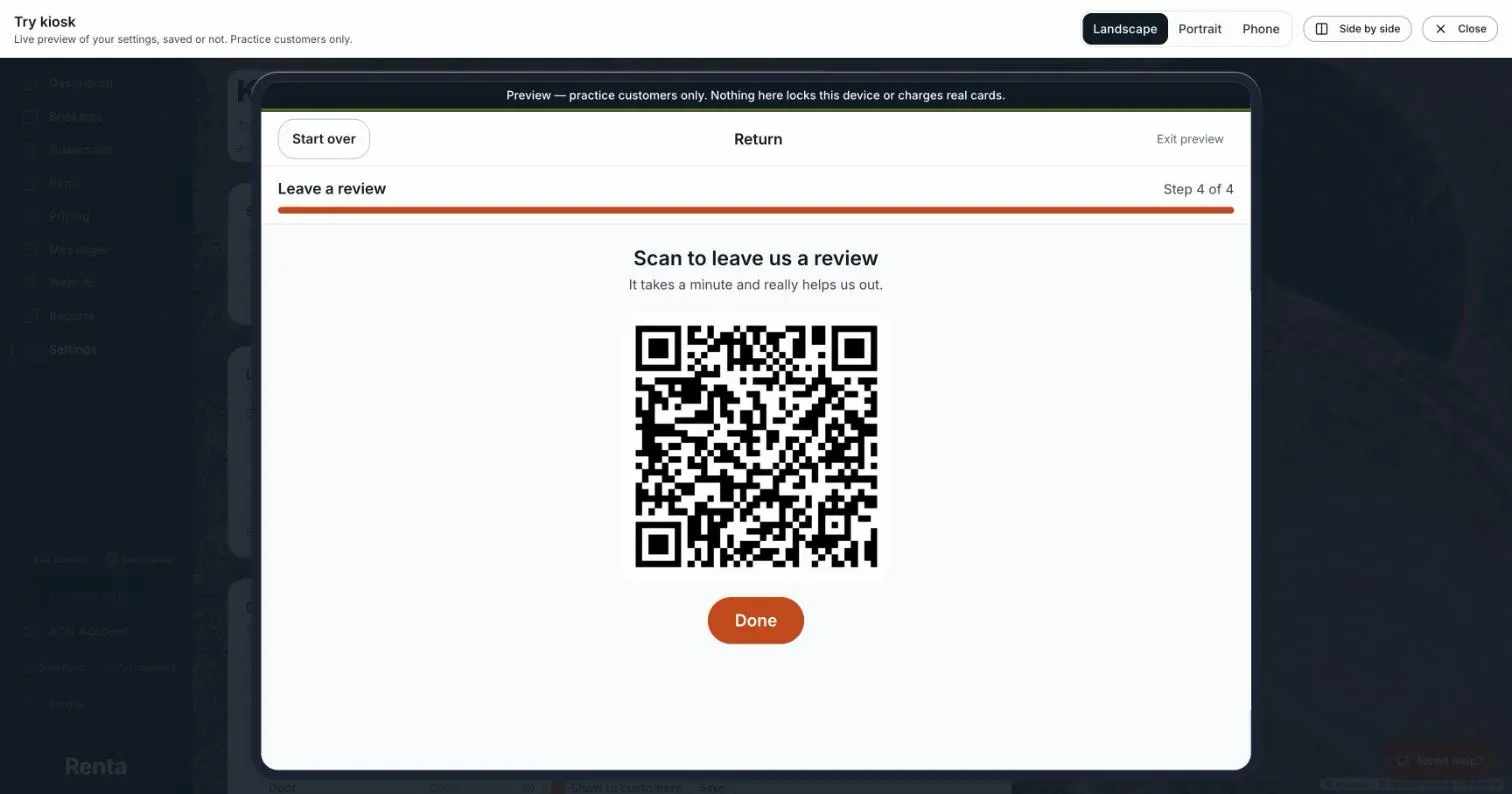 The Scan to leave us a review screen with a QR code
The steps, in the order customers see them
Only the steps you ticked appear, one at a time, with a "Step 1 of 4" bar. A ticked step is still skipped when it has nothing to do: the Return checklist when the rental has no checklist items, and the review when you have no active review link. So a rental with no checklist items goes Condition photos, Report damage, Tip, Review, and the bar counts four steps.
1. Condition photos (skippable). "Take a few photos of the gear as you're returning it." Take photos opens the tablet's back camera, and several photos can be taken at once. With none, the button reads Skip photos. Photos are saved on the booking's return record, the same photo list staff see when they finish a rental. JPEG, PNG, WebP, HEIC and HEIF photos up to 15 MB each, 10 at a time. 2. Return checklist (only when the rental has items). "Tick off each item as you check it." Items are grouped by machine. They come from two places: maintenance tasks you marked as Return ("Show on post-rental return checklist"), and the post-ride inspection items on each machine. See Post-ride (return) inspection checklist. A customer can always continue. Anything left unticked reads "Anything you can't tick, a team member will check", and the return goes to staff. When there are no items, or when your own Finish flow (Return) has its Checklist step switched off, the customer never sees this step and goes straight from the photos to Report damage. 3. Report damage. "Did anything get damaged?" with Yes and No. No moves on. Yes opens "Tell us what happened": a description of up to 1,000 characters (optional), at least one photo, then Send report. Back returns to the question. The report is filed on the booking like one staff log with Log damage, in the booking's Uploaded files. A report with no description reads "Reported by the customer at the kiosk". A return with a damage report always goes to staff. 4. Leave a tip. See Tips at the kiosk. 5. Leave a review. "Scan to leave us a review" shows a QR code the customer scans with their own phone, then Done. It points to one of your active review links: links marked to show when a rental finishes are tried first, then your other active links in list order, using the first one that works (see Insights → Reviews → Outreach → Review links). See Asking customers for reviews (Review outreach). With no active review link, this step is skipped.
The return is checked in as soon as the last of the photo, checklist and damage steps is done, before the tip and review. A customer who walks away at the tip or the QR code has still returned their gear.
How it finishes
Staff reviews and releases deposit. The customer sees "Thanks, [name]! A team member will check your gear shortly." Staff get a notification, "[Customer name] returned gear — needs review", that lists the gear and, if there are reasons, "Needs staff:" with each one. The booking stays Active until a team member finishes it with the Finish button and decides the deposit. See Finishing a rental: the return checkout.
Finish automatically when no damage is reported (deposit released automatically). If the return is clean, the kiosk finishes the rental itself, the same way staff do with Finish. The booking becomes Completed, every open deposit hold is released in full, and the change log notes "Returned at the self-service kiosk — no staff member present". The customer sees "All done, [name]! Your deposit will be released." The card warns: "Deposits release with no staff check unless damage is reported."
Automatic finish sends the return to staff in many more cases than damage. See When automatic finish hands a return to staff.
Good to know
- The final screen has Done and returns to the home screen by itself after 60 seconds.
- If staff cannot be reached, the customer sees "We couldn't reach the team — please see the counter".
- Staff alerts about a practice booking start with "Practice:".
- The kiosk never takes money for rent or damage. A tip is the only payment at Return, and it is separate from the booking's balance.
Related articles
- What customers do at the kiosk: common questionsQuick answers on Reserve now, finding a booking by last name and phone, pick-up steps, Almost there, door codes, returning gear, damage, tips and when the kiosk starts over.
- Pick up at the kioskHow a customer picks up a reservation at the kiosk, which steps you can require, why a missing deposit hold sends them to staff, staff hand-off versus self-serve, and the Before you ride checklist.
- Reserve now: booking a walk-in at the kioskA walk-in customer books gear on the kiosk using your normal online checkout, starting today, and the kiosk then continues straight to pick-up. Reserve now is switched off in Try kiosk.
- Door codes at the kiosk (igloohome or a fixed code)On a self-serve kiosk, a customer who finishes pick-up taps Unlock your gear and gets a door code — from your igloohome smart lock, or a fixed code you set per shop for a keypad or lockbox. This covers when a code shows, which one wins, how long it works, the email copy, practice bookings, and the "see the counter" fallback.
- Common questions: individual units (machines, vehicles)Quick answers about adding, naming, moving, retiring and selling one physical machine, plus its QR sticker, scanning, meter readings, booking history, damage reports and photos.
Still stuck? Ask the chat.
Was this helpful?