Building a bundle product (packaged items with one price)
Package two or more fleet items into one bundle that customers book as a single item, and priced and edited like any other item.
Where to find it
Fleet → + New Bundle (or Pricing → Bundles → Create bundle product)
A bundle packages two or more of your fleet items into one listing that customers book as a single item, like a weekend package with a boat and a jet ski. A bundle is a normal fleet item: you make it, price it and edit it in the same item editor as everything else. This is different from a bundle discount rule, which only takes money off when a customer happens to book several items together; see Discounting when customers rent multiple items together.
Where to find it
To make one, open Fleet and click + New Bundle. You can also hover Pricing, click Bundles, choose the Bundle product card and click + Create bundle product. Both open the item editor in bundle mode. To change one later, click it in the Fleet list (it has a Bundle badge).
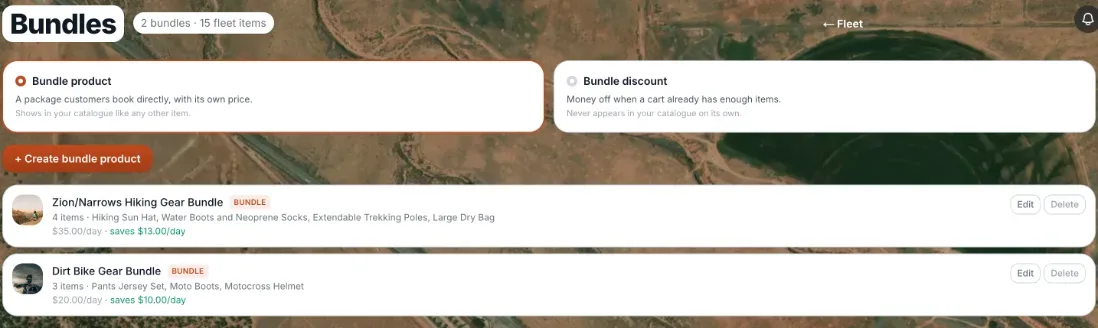 The Bundles page, listing bundle products
How it works
- Items in this bundle: in the first step, Bundle Identity, search for items or filter them by category, tick the ones to include and set a quantity for each. A bundle needs at least two items, and a bundle cannot contain another bundle.
- Availability: it comes from the items inside. The bundle can be booked only while every item in it has a free unit, and booking a bundle takes one of each item out of stock for those dates.
- Pricing: the Pricing step is the same as for any item: rates and rental hours, free or flexible times, multi-day and multi-hour discounts, a minimum or maximum daily charge, time-based and seasonal rules, and the night-before pickup. Your shop-wide pricing rules apply to a bundle too.
- Buffer time: shown but not editable. A bundle uses the largest buffer of the items inside it.
- Waiver, minimum age and requirements: these come from the items inside. A customer who books the bundle signs the waiver and meets the requirements of each item.
- Not set on the bundle yet: deposit, late fee, payment due at checkout, packages, and booking length and notice rules. These are coming soon for bundles.
Click Publish Bundle when you are done. A bundle that is saved without being published (or has no price yet) stays a draft.
Example
You create "Weekend Combo" from a jet ski and a kayak, set a $250 full-day rate in the Pricing step, and publish it. A customer can book it while both a jet ski and a kayak are free. Each booking takes one jet ski and one kayak out of stock for those dates.
Editing and deleting
- Edit: click the bundle in the Fleet list, change it and click Save changes.
- Delete: use Delete on the bundle's row on the Bundles page, or select it in the Fleet list and delete it there. If the bundle has past bookings it is archived instead: it keeps its list of items as a record and can no longer be booked. A bundle with an active booking cannot be deleted until that booking is cancelled or finished.
Good to know
- Deleting a bundle never deletes the items inside it. They stay in your fleet and keep being booked on their own.
- An item that is inside a bundle cannot be deleted until you take it out of the bundle.
- The older bundle form, with its own set of price boxes and a setting that applied the bundle price when its items were booked on their own, is gone. A bundle is now priced only through the Pricing step.
- Bundle discount rules are a separate thing and still live on the Bundles page. See How a price is calculated.
Related articles
- Common questions: pricing rules, discounts and rate cardsShort answers about seasonal rules, weekday and long-rental discounts, bundle discounts, bundles (packages of items) and rate card templates, including why a rule is not applying.
- Reusable pricing templatesSave a set of rates once (hourly, half-day, full-day, multi-day, weekly) and push the same set to many items when you choose, with a preview before anything changes.
- Seasonal price markups and discountsAutomatically charge more or less during a date range, like a summer markup or an off-season discount.
- Charging different prices by day of the weekAutomatically discount slow days or add a weekend surcharge, based on the pickup day.
- Where duration discounts live across your fleetA read-only list of every item's multi-day and multi-hour discount, so you can see them all in one place.
Still stuck? Ask the chat.
Was this helpful?