Reusable pricing templates
Save a set of rates once (hourly, half-day, full-day, multi-day, weekly) and push the same set to many items when you choose, with a preview before anything changes.
Where to find it
Pricing → Rate cards (also under Fleet → More fleet actions on a smaller screen)
A rate card template is a saved set of prices (hourly, half-day, full-day, multi-day and weekly rates, plus a deposit amount) that you can send to many fleet items when you decide to, instead of typing the same rates into every item.
Where to find it
Hover Pricing in the sidebar and click Rate cards (anyone with settings access; the page itself is headed Rate Card Templates). On a smaller screen it is also in the More fleet actions menu on the Fleet page.
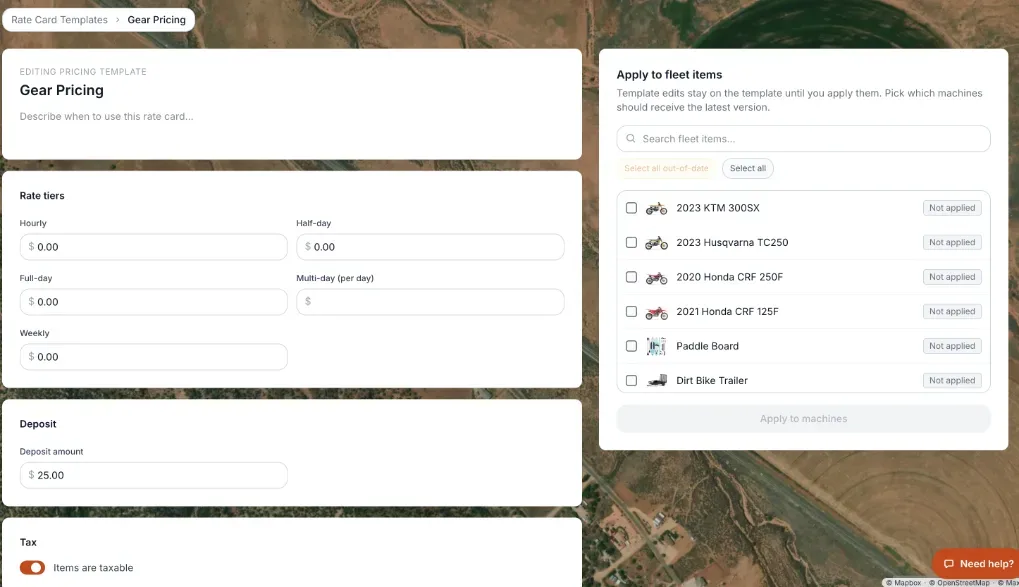 A rate card template with its rate tiers and the Apply to fleet items panel
The templates list
With no templates the page says "No rate card templates yet" and "Create your first rate card template to get started." + New Template opens a blank one. Each card shows the template name, how many fields it fills in and when it was last updated, a description, a few of its values as small tags, and a Clone button that makes a copy named "(name) (copy)". There is no usage count on the cards.
The template editor
The heading says "Editing pricing template". Fill in:
- A template name (required, "Template name is required." if you leave it empty) and a description ("Describe when to use this rate card…").
- Under Rate tiers: Hourly, Half-day, Full-day, Multi-day (per day) and Weekly. A blank rate leaves that rate alone when you apply it. A rate of 0 writes 0.
- Under Deposit: Deposit amount.
- Under Tax: Items are taxable (on by default). This is saved on the template but is not copied onto items when you apply it.
Multi-day applies from the second day (2 or more days). Weekly applies from 7 days. A rate of 0 means that rate is not offered.
Buttons: Save template, Back and, once the template is saved, Delete template. After saving you see "Template saved. Use the panel to apply changes to machines." A new template tells you to save it before you can apply it.
Delete template asks `Delete template "(name)"?` and says that machines that received the template keep their current pricing. Only the template itself is removed.
Applying a template to items
Editing a template does not change any item. Edits stay on the template until you apply them: "Pick which machines should receive the latest version."
1. Open the template and look at the Apply to fleet items panel. 2. Use Search fleet items…, Select all out-of-date or Select all. Nothing is ticked at the start. Each item shows Applied, Out of date or Not applied. 3. Click Apply to machines (it becomes Apply to N machines). 4. A preview, Apply to N machines?, shows exactly what would change on each one, and how many items will receive the template for the first time. 5. Click Apply changes to write it, or Cancel.
Only the rates the template actually fills in are written to the item.
When an item has its own detailed rates
If an item's own pricing is set up with detailed rate tiers for hourly, half-day or full-day rates, those take priority, and the template's hourly, half-day and full-day figures will not show on that item. Multi-day and weekly always come from the item's saved rates, so a template can set those. If you apply a template to an item and its price does not change the way you expect, check that item's Pricing step.
Another way to make one
On an item's editor, in the Pricing step, use Save this pricing as a reusable template, enter a Template Name and click Save template. This saves that item's hourly, half-day, full-day and weekly rates, deposit and discount rules. It does not save the multi-day rate.
Example
You build a "Standard Watercraft" template with a $150 half-day, $250 full-day, $220 multi-day and $1,200 weekly rate. You select your five jet skis, review the preview, and click Apply changes. Later you raise the weekly rate on the template. The jet skis only change when you open the template again and apply it to them.
Good to know
- Nothing updates automatically. A price increase across your fleet means editing the template, selecting the items and applying it.
- Duration discounts and adjustment rules (seasonal, day-of-week) still apply on top of a template's rates. See How a price is calculated.
- To start a brand-new item from your item templates instead, see Reusable item templates.
Related articles
- Common questions: pricing rules, discounts and rate cardsShort answers about seasonal rules, weekday and long-rental discounts, bundle discounts, bundles (packages of items) and rate card templates, including why a rule is not applying.
- Maintenance templatesBuild a reusable set of service tasks and inspection items once, then apply it to many machines, and understand exactly what applying does and does not change.
- Seasonal price markups and discountsAutomatically charge more or less during a date range, like a summer markup or an off-season discount.
- Charging different prices by day of the weekAutomatically discount slow days or add a weekend surcharge, based on the pickup day.
- Discounting when customers rent multiple items together"Rent 2, save 15%" style rules that discount a booking when it includes several items at once.
Still stuck? Ask the chat.
Was this helpful?