Customizing how your own admin dashboard looks
Choose the sidebar style (Minimal or Expanded), and set background images and animation effects for your team's admin view — this does not change what customers see.
Where to find it
Settings → Advanced → Appearance; Edit sidebar (bottom of the left sidebar) for the sidebar style
The Appearance page customizes how your own admin dashboard looks for your team. It does not change what customers see on your storefront. It is saved for your whole business, so your team sees the same background.
Where to find it
Settings → Advanced (click it to expand) → Appearance. Press Save appearance at the bottom after changing anything.
The sidebar style is not on this page. It is under Edit sidebar at the bottom of the left sidebar (see below).
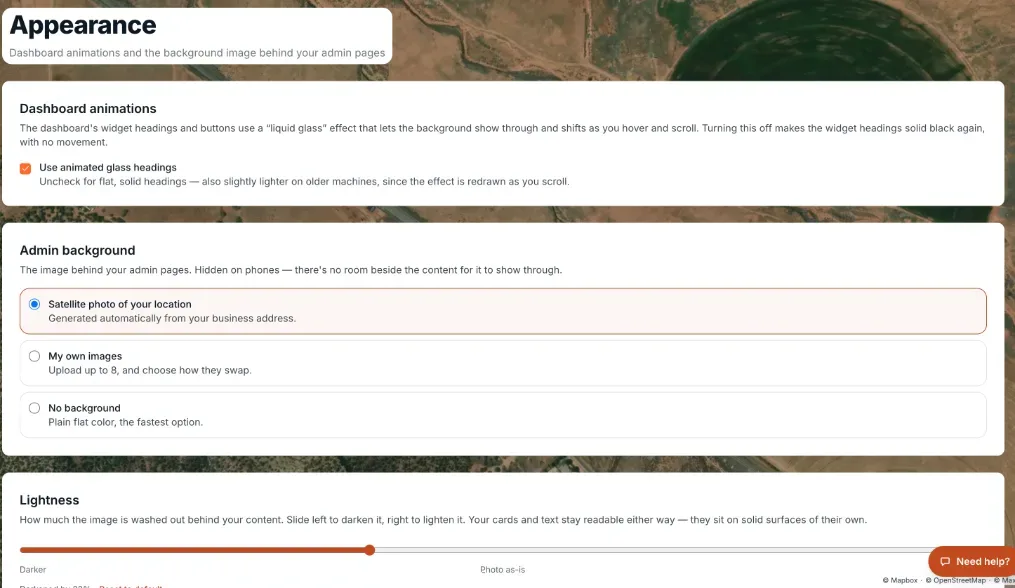 The Appearance page with animation toggle and background image list
How it works
- Sidebar style (under Edit sidebar at the bottom of the left sidebar, then Sidebar style) — choose Minimal or Expanded. Minimal is the starting choice: the sidebar shows only the top-level rows, and a row with sub-pages (like Pricing or Messages) opens them in a drawer. Expanded lists every sub-page under its row. On phones and tablets, Minimal opens the sub-pages in place. This is remembered in your own browser, so each person on your team picks their own, and a choice you made before is kept.
- Use animated glass headings (in the Dashboard animations card) — on by default. Untick for flat, solid headings, which is also lighter on older computers.
- Admin background — the image behind your admin pages, hidden on phones. Choose Satellite photo of your location (the starting choice, made from your business address; greyed out until you add an address), My own images (up to 8), or No background (plain flat color).
- Your images (shown for My own images) — Add an image, move with the up and down arrows, or Remove. The first image shows when swapping is off. Add images one at a time.
- How they swap (shown with two or more images) — "Don't swap — always show the first image" (the default), "Pick one at random each time a page loads", or "Rotate on a timer while you work". For the timer, Swap every takes 5 to 600 seconds (starting at 30) and Change with a Fade, Slide, or Instant cut. If your computer is set to reduce motion, fades and slides become instant cuts.
- Lightness — a slider from Darker through "Photo as-is" to Lighter, starting at 75, with Reset to default and a live preview.
- Which pages show it — tick the sections (Dashboard, Bookings, Customers, Fleet, Maintenance, Waivers, Inquiries & Inbox, Disputes & Payment Issues, Reports, Insights, Website, Coupons, Settings, Other pages). Select all and Clear all help. All are ticked at first; unticked pages get a plain flat color.
Example
You choose My own images, add three photos of your fleet, pick "Rotate on a timer while you work" with Swap every 60 seconds and a Fade, and press Save appearance. Your team's background changes to a new photo each minute.
Good to know
- Your customer-facing logo, colors, and fonts are on a different page: Your logo, brand colors, and fonts.
- For more quick answers see Common questions: logo, colors, fonts, and dashboard appearance.
Related articles
- Setting your site-wide colors, fonts and spacing (Theme)The Design tab shows your shop's colors and fonts (set in Settings › Brand) and holds the button style, section style, spacing and background images your whole site shares.
- Where did it move? Old menu names and where they are nowA lookup table from the old names in the Renta menus and Settings page to where each one lives today, with a link to the help article for each.
Still stuck? Ask the chat.
Was this helpful?