Your logo, brand colors, and fonts
Set your logo, favicon, seven brand colors, fonts, shop description and cover image in one place. Your website picks them up when you Publish.
Where to find it
Settings → Brand
The Brand page is the one place you set how your business looks. Your logo, favicon, seven colors, fonts, shop description and cover image all live here. Customer emails, receipts and the kiosk use them. Your website picks them up when you Publish.
Where to find it
Settings → Brand.
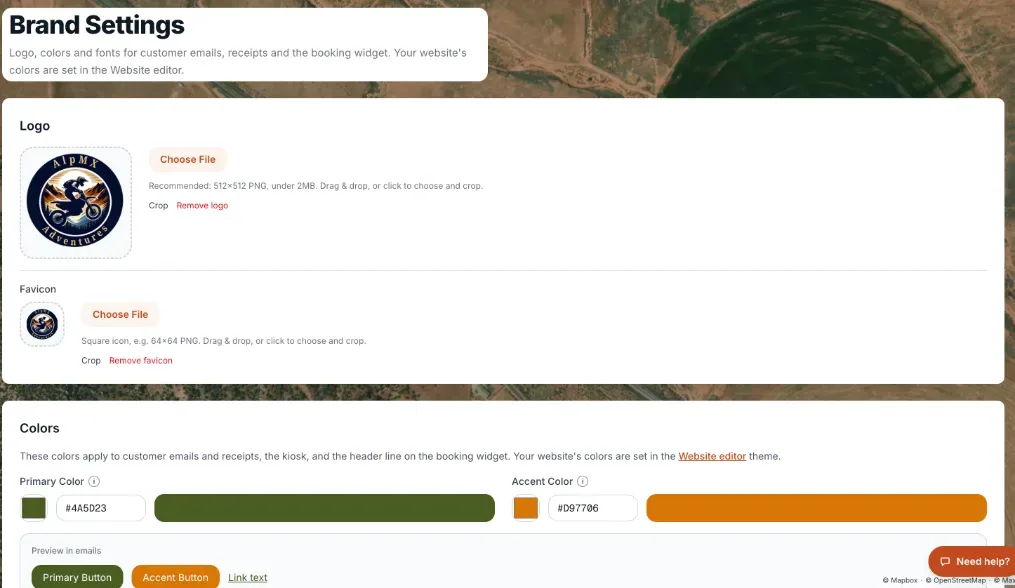 The Brand page showing Logo, Colors, and Typography sections
How it works
- Logo — drag an image in or press Choose File, crop it, and press Upload. Renta recommends a 512×512 PNG under 2MB. Remove logo takes it off.
- Favicon — the small icon shown in a browser tab. Use a square image, for example 64×64 pixels. Drag it in or choose a file, crop it, and press Upload. Remove favicon takes it off.
- Shop description and cover image — the text and wide photo at the top of your booking page and your Renta marketplace listing. Type your description in Shop description. For the cover image, drag in a wide photo and crop it to 16:9. These used to be in the Edit storefront drawer on the booking page. They are only here now.
- Start from a palette — nine ready-made palettes: Summit, Forest, Coast, Sunset, Mono, Berry, Dune, Industrial and Bold. Click one to fill all seven colors at once. A palette changes colors only. It never changes your fonts. You can still change any color afterwards.
- Seven colors — each has a color picker and a box for a hex code (a color code like #FF6B2C, with 3 or 6 digits):
- Headings and navigation — headings and the navigation bar on your website.
- Buttons — your main buttons, such as Book Now, and the buttons in customer emails and the kiosk.
- Highlights — small highlights and badges, never your main buttons.
- Page background — the color behind everything on a page.
- Cards and panels — cards and panels that sit on top of the page background.
- Body text — paragraphs and labels.
- Quiet text — captions, dates and helper lines.
- Preview — a small live sample with a header bar, a button, a heading and body text. It changes as you pick colors and fonts.
- Heading Font and Body Font — 11 fonts to choose from: Inter (the default), Open Sans, Lato, Roboto, Poppins, Montserrat, Raleway, Oswald, Playfair Display, Merriweather and Bebas Neue. Each is shown in its own font.
Example
You run a lake shop with a forest-green brand. Click the Forest palette, then change Buttons to your own orange. The Preview shows the result. Press Save Brand Settings, then Publish your website to put the new look on your live site.
Good to know
- Press Save Brand Settings to keep your changes. After it saves, you see "Publish your website to put these changes on your live site", with a link to Publish. Until you Publish, your live website keeps its current look.
- Only what you change is saved. If you change only your logo, your colors and fonts are left as they were.
- The first time you open the page, colors you have not saved yet are your live website's current colors. A note says so. Change any color and save, and all seven become your brand colors.
- If a color is not a valid hex code, the box turns red and says what to type. Renta will not save until you fix it.
- If some text may be hard to read, a yellow box called Some text may be hard to read lists each pair. It checks for a contrast of at least 4.5 to 1. It is a warning only. It never stops you from saving.
- Your logo and colors are also used on receipts and customer emails such as payment links and door codes, and your favicon is the browser-tab icon on your storefront. For more quick answers see Common questions: logo, colors, fonts, and dashboard appearance.
- This page is about how your business looks to customers. Your own admin dashboard's appearance is controlled separately in Admin dashboard appearance.
Related articles
- Setting your site-wide colors, fonts and spacing (Theme)The Design tab shows your shop's colors and fonts (set in Settings › Brand) and holds the button style, section style, spacing and background images your whole site shares.
- Website and Site Builder — common questionsQuick answers on building, previewing and publishing your website pages, setting the page URL and Google title, picking colors and fonts, and fixing "why isn't my change showing".
- Blog — common questionsQuick answers on writing, scheduling and publishing blog posts on your website, where customers find them, and why a post may not be showing.
- Navigation bar and footer widgetsThe site-wide header with your logo and menu links, and the footer with contact info and social links.
- Writing and publishing blog postsWrite, edit, schedule, and publish articles on your public storefront blog.
Still stuck? Ask the chat.
Was this helpful?