Setting your business contact details
The email, phone, and address shown to customers on waivers and used to set up your Stripe payment profile.
Where to find it
Settings → Business profile → Contact & address card
Your business's Email, Phone, and Address show up on waivers and customer communications, and feed your Stripe payment profile — they are separate from your own login email.
Where to find it
Settings → Business profile → Contact & address card. Press Save at the bottom of the page. The optional Business website field is in the Business details card above it.
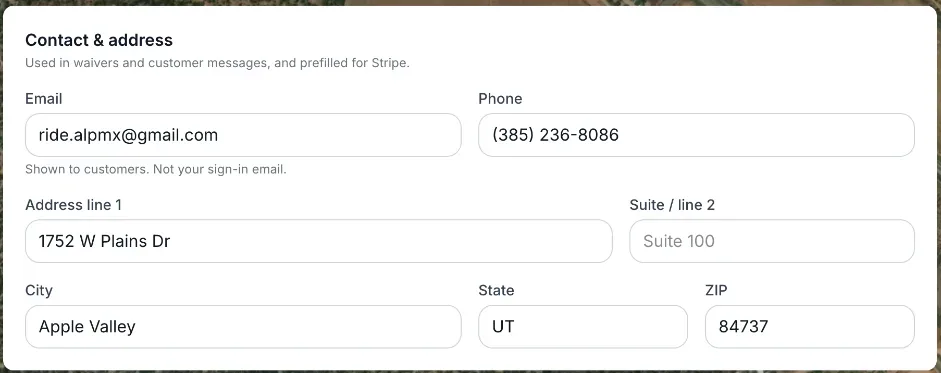 The Contact & address card with Email, Phone, and Address fields
How it works
- Email — the business email customers see. This is customer-facing only and is not the email you log in with.
- Phone — the business phone number shown to customers.
- Address line 1 / Suite / line 2 — your street address (the second line is for a suite or apartment number). Used on waivers and your Stripe profile.
- City, State, ZIP — complete your business address, also used on waivers and Stripe.
- Business website (in the Business details card) — an optional URL. If set, it shows on your Stripe business profile. Leave it blank if you don't have a site yet.
Example
If your waiver template needs a business address printed at the bottom, Renta pulls it directly from Address line 1, City, State, and ZIP here — you never enter it separately on the waiver.
Good to know
- This business Email is different from the email your staff use to log in — see Inviting staff for login accounts.
- Stripe uses this contact information for your payment processing profile, so keep it accurate — see Connecting Stripe.
Related articles
- Common questions: business details and general settingsQuick answers about business details and the settings that used to sit on the old General page - business name, timezone, contact details (Settings → Business profile), tax rate and currency (Pricing), late return alerts and the weekly email (Messages), the Help Chat bubble, and why some Settings cards are missing.
- Getting a Monday morning summary emailTurn on a weekly email digest of your revenue, bookings, and key metrics sent to your inbox.
- Getting notified when a rental is overdueAlert your team, and optionally the customer, once a booking passes its return time by a grace period you set.
- Whether unpaid bookings block your calendarDecide if an unpaid pending booking reserves the item for that customer, or lets someone else book it in the meantime.
- Turning the Renta Help Chat widget on or offWhat the "Need help?" chat bubble in your admin answers and how to reach a person from it, and how to switch it off for good.
Still stuck? Ask the chat.
Was this helpful?