Setting up your pickup and dropoff locations
Add every physical spot where customers pick up or return your equipment, each with its own address, phone, and hours.
Where to find it
Settings → Locations
Locations are the physical spots where customers pick up and return your equipment. You can add as many as your business needs, each with its own address, phone number, timezone, and hours.
Where to find it
Settings → Locations.
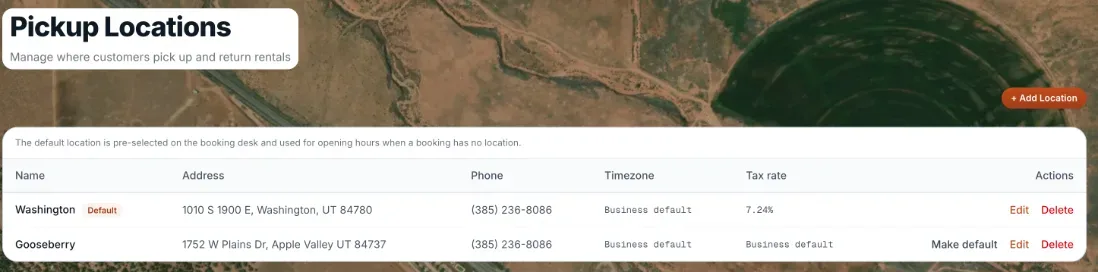 The Locations list with the Add Location button
How it works
- Name — what the location is called (for example, "Downtown Shop" or "Airport Counter").
- Phone — a phone number specific to this location, shown to customers.
- Address — the full street address, used on bookings and waivers.
- Location timezone — defaults to your overall business timezone, but you can set a different one for this location if it operates in another time zone.
- Sales tax rate for this location — leave it blank to use your business tax rate, or enter a rate for this shop.
- Operating Hours — open and close times for each day of the week, used to show customers when this location is available.
- Add Location button — creates a new location.
- Default badge and Make default — the first row is the default location. On the booking desk, the pickup location follows the items in the order; with no shop-specific items yet, it starts on the default shop. Press Make default on any other row to change it.
Example
If you run a shop downtown and a second counter at the airport with different hours, you'd add two locations — each with its own address and its own Operating Hours, so customers see the correct pickup window for whichever spot they choose.
Good to know
- A location's timezone can differ from your business's main Timezone if it operates in a different region.
- A fleet item can be assigned to a location, or left on all locations. Add your locations before assigning where items live.
- With two or more locations, extra shop features turn on. See Running more than one shop.
Related articles
- Common questions: locations and shopsQuick answers about adding, editing, and deleting pickup locations, choosing a default, setting hours, timezone and tax per location, and why you may be stopped from adding another.
- What is a buffer window? (Buffer Between Rentals)The gap Renta enforces after a rental returns before the same item can go out again, for cleaning or resetting.
- Common questions: creating and editing a fleet itemQuick answers on adding and editing a rental item, from photos, SKU, tags, rates, packages, discounts, deposit and waivers to Live or Draft, Save as Template, clone and delete.
Still stuck? Ask the chat.
Was this helpful?