Every text message Renta has sent or received
Renta doesn't send text messages yet, so no new rows are added until a text provider is connected. Older rows, including skipped ones, still show.
Where to find it
Settings → SMS → Message Log tab
Renta doesn't send text messages right now, so nothing new is added to this log — every notification currently goes out by email instead. Rows from earlier, including ones marked Skipped, still show.
Where to find it
Settings → SMS → Message Log tab.
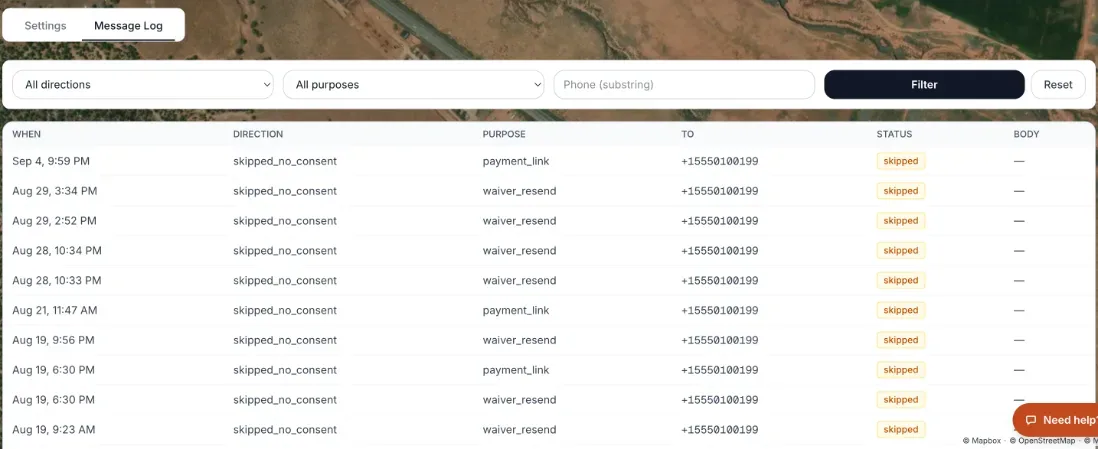 The Message Log tab with the filter row and a table that includes Skipped rows from earlier
How it works
The tab is a searchable record of text messages sent to or received from your customers, plus ones Renta decided not to send:
- Filter row — three boxes and two buttons: a Direction menu, a Purpose menu, and a Phone (substring) box, with Filter and Reset.
- Direction — All directions, Outbound, Inbound, or one of three Skipped reasons: Skipped — no consent (the customer never agreed to texts), Skipped — invalid number, and Skipped — demo (a practice booking or demo data).
- Purpose — what triggered the message: Booking confirmation, Pre-ride reminder, Waiver delivery, Waiver resend, Payment link, Admin resend, Magic link, or Inbound reply.
- Phone — type part of a customer's phone number.
- Message table — one row per message, with columns When, Direction, Purpose, To, Status and Body. Status shows words such as delivered, sent, queued, failed, undelivered, skipped or received, and a failed row also shows its error. The Body column is cut short; hover to read it all.
- Under the table, ← Prev and Next → move between pages, and the footer reads "Page N of M — T total". With no match it says "No messages match the current filters."
Good to know
- Until text messaging is turned on for your account, every notification is sent by email, and no new rows appear here.
- Which message types would go by SMS once it's available is set in Notification preferences — those choices are currently greyed out.
Related articles
- Your customer email templatesWrite and switch on the automated emails customers get (confirmations, reminders, receipts, review requests), see when each last went out, and preview them.
- The "From" name and reply-to address on your emailsSet what customers see as the sender name and reply-to address when Renta emails them on your behalf.
- Staff alerts: the notification bell and what each alert meansThe bell at the top of the admin, the pop-up and email that come with each alert, and what every alert (new booking, inquiry, overdue return, driver runs, kiosk alerts and more) means.
- Common questions: customer emails, sender name, and text messagesQuick answers about the automated emails Renta sends your customers, how to change the sender name and reply address, how to edit or switch off each email, and why text messages are not available yet.
Still stuck? Ask the chat.
Was this helpful?