The "From" name and reply-to address on your emails
Set what customers see as the sender name and reply-to address when Renta emails them on your behalf.
Where to find it
Messages → Automated messages → Sender card
The Sender card controls what customers see as the sender of your automated emails, and where their replies go. It applies to every email Renta sends them for you: confirmations, receipts, reminders, and waiver links.
Where to find it
Messages → Automated messages, the Sender card at the top of the page (above the template list). The old Settings → Emails address sends you here.
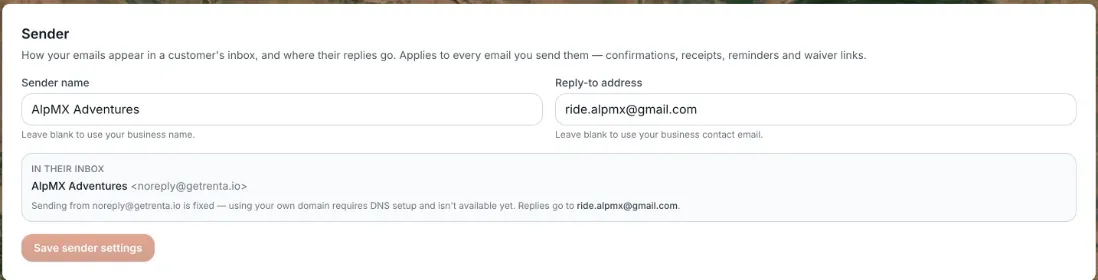 The Sender Identity card with From name and Reply-To email fields, and a live preview
How it works
- Sender name — the name shown next to the sending address. Up to 100 characters. Leave it blank to use your business name.
- Reply-to address — where a customer's reply goes. Leave it blank to use your business contact email. If you have no contact email either, the card warns "Leave blank and replies go nowhere."
- In their inbox — a live preview of the sender name plus the sending address, and where replies will land.
- Save sender settings — saves both fields. It is greyed out until you change something.
Example
You set Sender name to "AlpMX Adventures" and Reply-to address to your front-desk inbox. A customer sees "AlpMX Adventures" in their inbox, and pressing Reply writes to your front desk.
Good to know
- The sending address itself is fixed and shared. Renta says using your own domain "requires DNS setup and isn't available yet."
- This only changes the sender name and reply address. The wording of each email is in Your customer email templates.
- For more quick answers see Common questions: customer emails, sender name, and text messages.
Related articles
- Choosing which messages go by text vs. emailRenta doesn't send text messages yet — every notification goes by email until a text provider is connected.
- Every text message Renta has sent or receivedRenta doesn't send text messages yet, so no new rows are added until a text provider is connected. Older rows, including skipped ones, still show.
- Staff alerts: the notification bell and what each alert meansThe bell at the top of the admin, the pop-up and email that come with each alert, and what every alert (new booking, inquiry, overdue return, driver runs, kiosk alerts and more) means.
Still stuck? Ask the chat.
Was this helpful?