Creating API keys for developers
Generate, read and revoke the keys that let another tool or developer connect to your Renta account, and choose between secret, publishable and limited partner keys.
Where to find it
Settings → Integrations → API Keys (at the bottom of the page)
An API key is a long secret code that lets another program, such as a booking widget on another website, Zapier or a developer's own app, talk to your Renta account without using your login. Most shop owners never need one.
Where to find it
Click Settings in the left sidebar, then Integrations, and scroll to API Keys near the bottom. Older links to an API Keys page forward here.
Only owners and managers can see this page or create keys. The section says: "Used to connect Renta to an external tool like Zapier, a custom booking widget, or your own app — most shop owners never need this."
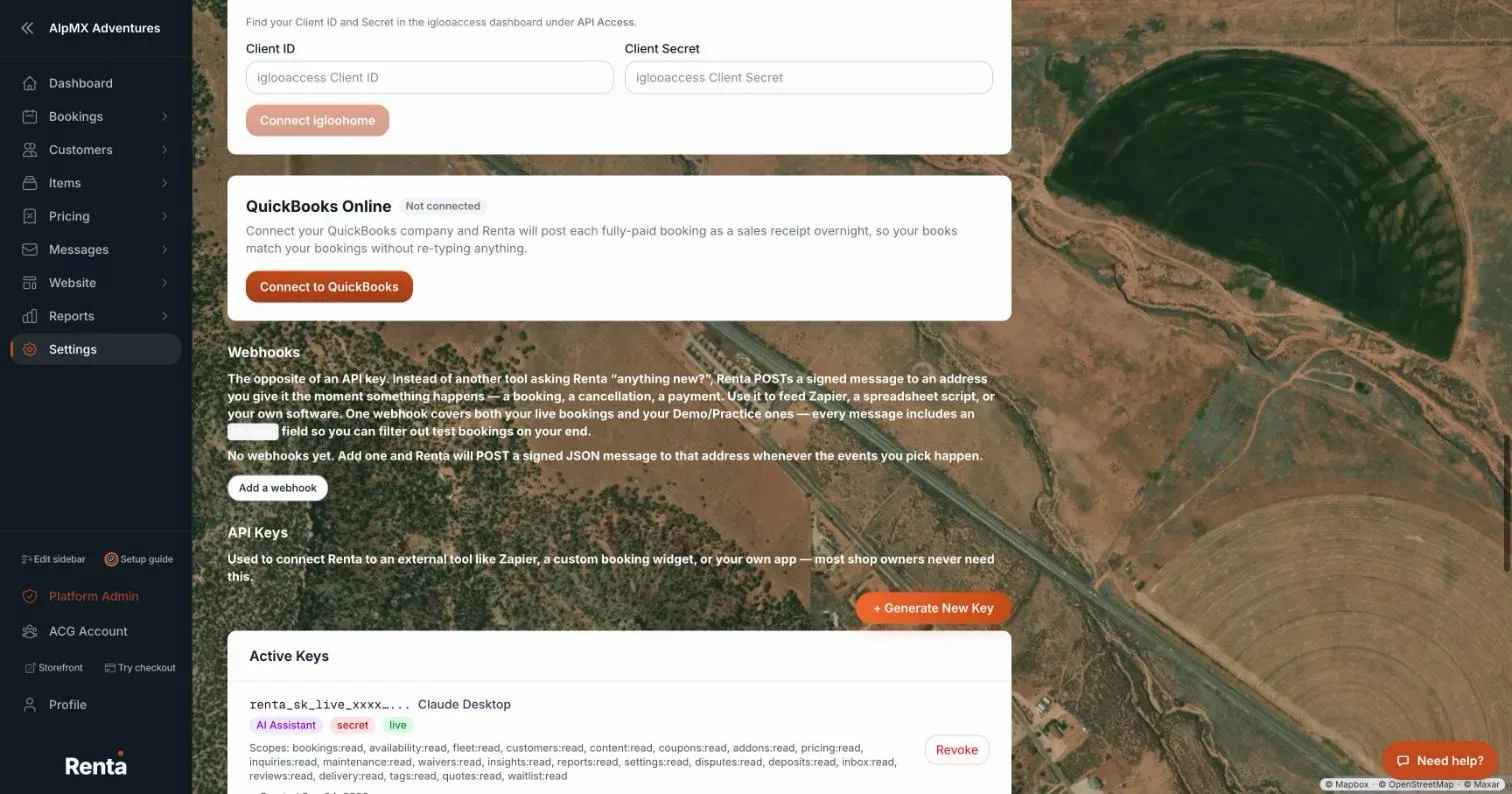 The API Keys section with the Generate New Key button and the Active Keys list
What the list shows
+ Generate New Key sits above the list. Under Active Keys, each key shows:
- The first characters of the key followed by "..." (the rest is never shown again).
- Its name.
- A tag, API for a developer key or AI Assistant for a connection you made in the AI assistant section above. See Connecting an AI assistant (Claude, ChatGPT and other MCP tools).
- Its type (secret or publishable) and its environment (live or test).
- Scopes (the list of things it is allowed to do), if it is a limited key.
- Created and, once it has been used, Last used dates.
- A Revoke button.
With none, the list says "No API keys yet. Generate one to get started." Keys you revoke move to a Revoked list below with the revoke date.
Generate a key
1. Click + Generate New Key. 2. Type a Name that tells you what the key is for, such as "Production Server". It starts as "Default". 3. Choose a Type:
- Secret (sk) — Full access, server-side only. For your own server or a trusted developer. It can do everything the API allows.
- Publishable (pk) — Read-only, safe for client-side. Safe to put in a web page, because it can only read.
4. Optional: tick Partner key (limited scopes) to "Grant only what an external channel partner needs, instead of full tenant access." This forces the type to secret and shows a list of permissions to tick: `availability:read` (check what is free) and `bookings:read` (read bookings). Tick at least one, or you will see "Select at least one scope." and the Generate button stays off. 5. Choose the Environment: Live — Production data or Test — Sandbox data. 6. Click Generate.
A window titled API Key Generated shows the full key once. It warns "This key won't be shown again. Copy it now." Click Copy (it changes to "Copied!"), store the key somewhere safe, then click Done. Renta keeps only a scrambled version, so it cannot show you the key again.
Revoke a key
1. Click Revoke next to the key. 2. Confirm "Revoke API key (start of key)...?" It says "This cannot be undone." 3. The key stops working immediately and moves to the Revoked list.
Example
A developer building a booking page on your own website needs to check availability. Generate a key named "Website availability", tick Partner key (limited scopes), tick only `availability:read`, choose Live, and send them the key once it is shown. If you ever stop working with them, revoke it.
Good to know
- Treat a key like a password. Anyone who has it can use your account within what the key allows. If it might be exposed, revoke it and make a new one.
- Because the full key appears only once, you cannot copy it from the list later. If you lose it, make a new one and revoke the old one.
- Last used stays blank until the key is first used.
- If something goes wrong while creating or revoking, a red message appears above the list ("Couldn't generate the key — try again." or "Couldn't revoke the key — try again.").
- To have Renta send your tool a message when something happens, rather than your tool asking, use webhooks. See Sending Renta events to another system (webhooks).
Related articles
- Common questions: QuickBooks, Google, smart locks, AI assistants, API keys, and webhooksQuick answers about connecting QuickBooks Online, Google, Instagram, RideDog, igloohome smart locks, Claude or ChatGPT (MCP), API keys, and webhooks, plus why a connection may be missing or greyed out.
- Connecting RideDogLink your RideDog account to see your GPS trackers and live vehicle locations right inside your Renta dashboard.
- Connecting QuickBooks OnlinePost your paid bookings and refunds to QuickBooks Online automatically, with sales tax recorded as money owed to the tax office.
- Connecting smart locks (igloohome)Connect your igloohome (iglooaccess) account so Renta can issue self-expiring door codes for bookings.
- Connecting Google Search Console, Analytics, and your Business ProfileLink Google so your search traffic and site performance show up in Renta, with an optional Business Profile connection for reviews and location data.
Still stuck? Ask the chat.
Was this helpful?