Text blocks and image galleries
A Text Block widget for writing rich content, and an Image Gallery widget for showing off photos.
Where to find it
Website (left sidebar) → open a page → Sections tab → Add Section → "Text Block" or "Image Gallery"
The Text Block widget writes paragraphs, lists, or structured layouts anywhere on your page. The Image Gallery widget shows a set of photos in a grid, carousel, or freeform collage that visitors can click to enlarge.
Where to find it
Website → open a page → drag Text Block or Image Gallery from the widget picker.
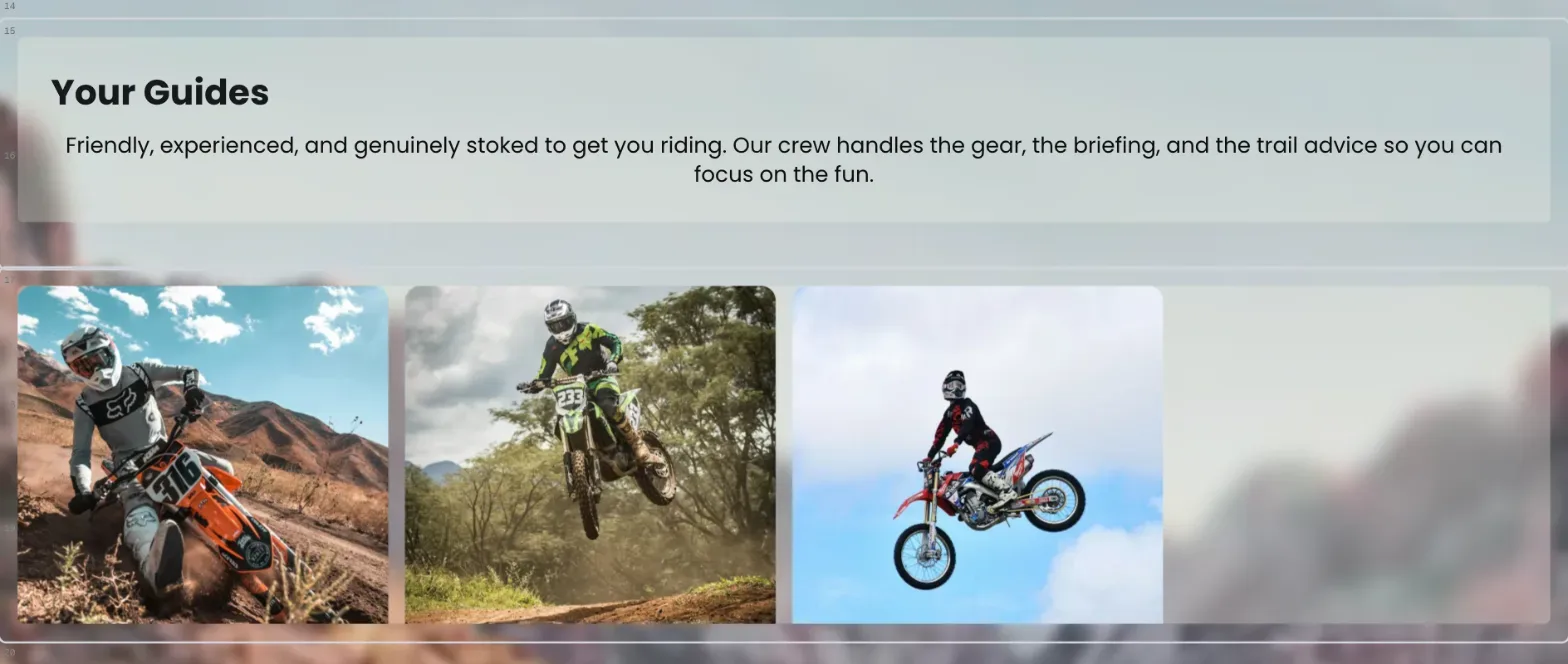 A Text Block widget and an Image Gallery widget side by side on a page
How it works
Text Block
- Heading and Subheading: optional plain-text lines above your content.
- Content: your rich-text paragraphs, by default.
- Layout: instead of plain rich text, you can switch to Feature columns (an icon, heading, and short body repeated across 2–4 columns) or Pricing cards (a title, price, description, and optional "badge" like "Most Popular," in 2–4 columns).
Image Gallery
- Layout: grid (fixed rows/columns you click into), carousel (scrollable row), or masonry (freeform collage).
- Grid size: for grid layout, set the number of rows and columns; empty slots hold their place until you fill them.
- Gap: spacing between photos, in pixels (0–48, default 8).
- Carousel motion: scroll it by hand (default), auto-advance, or slide continuously.
- Lightbox: clicking a photo enlarges it (on by default for most layouts).
- Each photo can have its own caption, and you can pan/zoom to choose which part of the photo shows in its slot.
Example
A cabin rental business might use a Text Block in "Pricing cards" mode to lay out "Weekday," "Weekend," and "Weekly" rates side by side, then an Image Gallery below showing interior photos in a 3-column grid.
Good to know
- Text Block's Feature Columns and Pricing Cards modes don't require any HTML — just fill in the fields.
- Fonts and colors you leave unset follow your site's theme — see Setting your site-wide colors, fonts and spacing.
Related articles
- Website widgets — common questionsQuick answers on adding and setting up each website block (hero banner, fleet grid, photo gallery, Book Now button, contact map, reviews, FAQ, navbar, footer and more), and why a block may look empty on your live site.
- Website AI assistantTurn on Renta's own chat assistant for your public website. It answers customer questions from your live rentals, prices and availability, and is paid for with AI credits.
- The hero banner widgetA large banner at the top of a page with a headline, image or video background, and a call-to-action button.
- Reviews and FAQ widgetsShow your customer reviews in a list, grid or carousel, and answer common questions in a collapsible FAQ list.
- Navigation bar and footer widgetsThe site-wide header with your logo and menu links, and the footer with contact info and social links.
Still stuck? Ask the chat.
Was this helpful?