Storing a customer's ID and documents
Upload a customer's license, ID, passport, insurance, or waiver, and see which ones Stripe has verified.
Where to find it
Customers → open a customer → Documents tab
The Documents tab is where you keep formal paperwork for a customer — their driver's license, ID, passport, insurance card, or a signed waiver.
Where to find it
Customers → open a customer → Documents tab
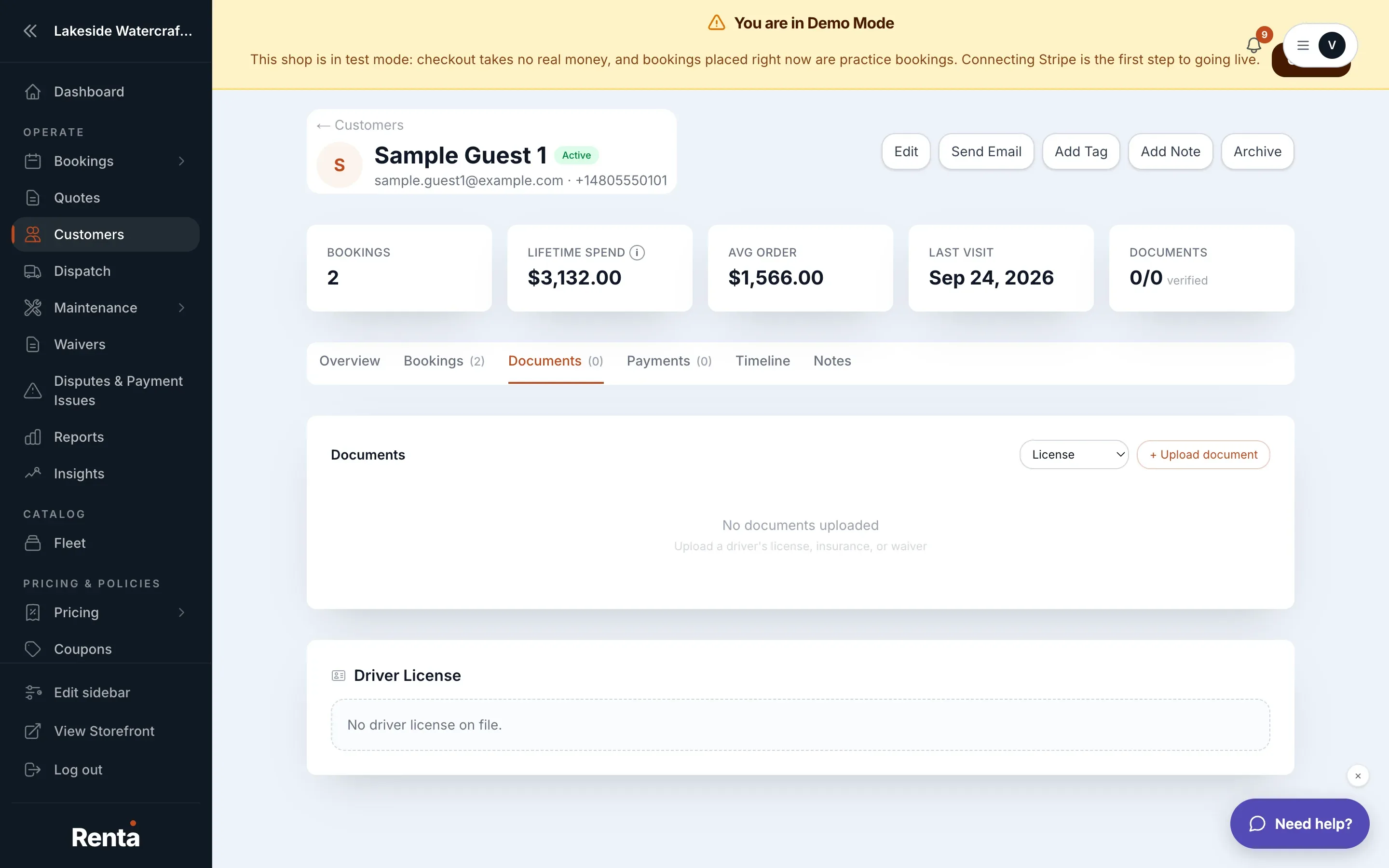 The Documents tab showing an uploaded license with a Verified badge
How it works
- + Upload document — pick the type first, then choose a file (PDF, JPEG, PNG, WebP, HEIC or HEIF, up to 20 MB).
- Document type selector — choose from License, Insurance, or Endorsement.
- Document row — shows the type, Verified or Pending, the upload date, and a View button.
- Verified / Pending badge — a new upload shows Pending. This tab has only a View button, with no button to mark a document Verified.
Example
A renter uploads their driver's license before picking up a jet ski. It shows as Pending, and staff can open it with View to check it.
Good to know
Documents are different from Photos, which are informal reference images (damage shots, a selfie) kept on the Notes tab instead. The driver's license number itself is shown separately — see Viewing a customer's driver's license number.
Related articles
- Customer records: common questionsQuick answers on finding, adding, editing, tagging, archiving and deleting customers, what the profile tabs show, saved cards, documents, notes, driver's license numbers and exporting your customer list.
- A customer's full profileContact info, lifetime spend, booking count, and internal tags and notes, all on one page.
- Finding and sorting customersSearch your customer list by name, filter by tag, and sort by spend, bookings, or last visit.
- Emailing one customer directlySend a one-off email to a customer from their profile, with a preview of exactly what will be delivered.
- Saved cards on a customer's accountCards saved on a customer's account, which one is marked Default, how to add one, and why a card cannot be removed.
Still stuck? Ask the chat.
Was this helpful?