Finding and sorting customers
Search your customer list by name, filter by tag, and sort by spend, bookings, or last visit.
Where to find it
Customers
The Customers page lists every person who has ever booked with you (or been added manually). You can search, filter by tag, and sort the list to find someone quickly.
Where to find it
Customers
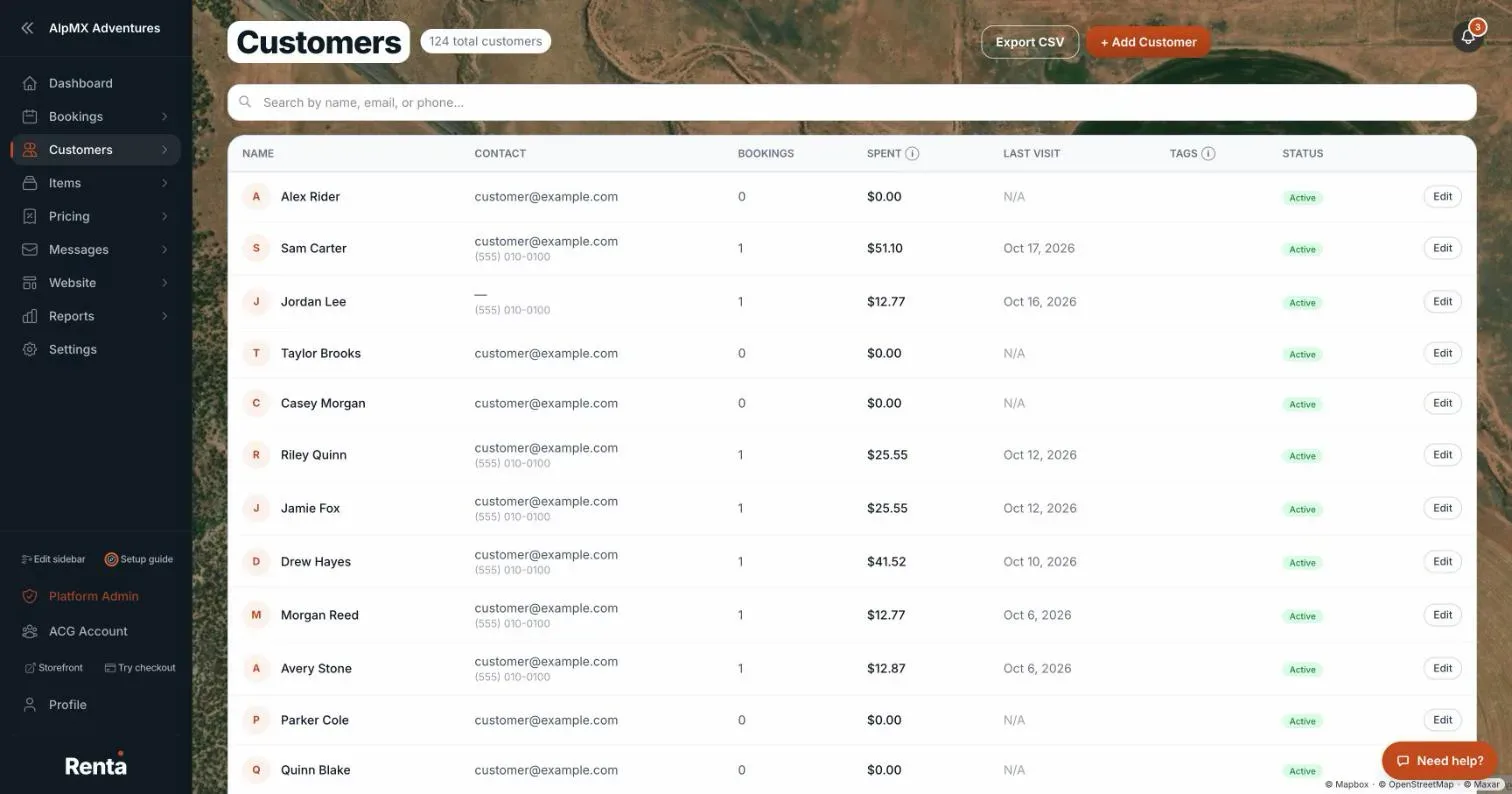 The Customers list with the search box, tag filter, and sortable columns
How it works
- Search box — "Search by name, email, or phone..." finds a customer by any of those. Close spellings of a name usually still match.
- Tag pills — All, then one pill per tag you've created. Click a tag to show only customers with it, like "VIP" or "Repeat." On a phone, the pills sit behind a Tags button.
- Columns — Name, Contact (email, with the phone underneath), Bookings, Spent, Last Visit, Tags, and Status. Click Name, Bookings, Spent, or Last Visit to sort; click again to flip the direction. Out of the box the list shows the newest customers first.
- Status badge — Banned, VIP, or Active.
- Practice — the built-in practice customers carry a "Practice" label and always sort to the bottom.
- Edit — each row has an Edit button that opens a small form (Full Name, Email, Phone, Billing Address, Date of Birth, Notes) without leaving the list. Click the customer's name to open their full profile.
- Export CSV and + Add Customer are at the top of the page. The check-in kiosk is not here any more: set it up and lock a tablet from the Kiosk card in Settings (see What the kiosk is: Staffed or Autonomous).
Example
If you want to see who has spent the most with you, click the Spent column header to sort high to low, then scan the top of the list.
Good to know
Tags shown here are internal — customers never see them. Read more about a customer's full record on A customer's full profile.
Related articles
- Customer records: common questionsQuick answers on finding, adding, editing, tagging, archiving and deleting customers, what the profile tabs show, saved cards, documents, notes, driver's license numbers and exporting your customer list.
- Emailing one customer directlySend a one-off email to a customer from their profile, with a preview of exactly what will be delivered.
- Saved cards on a customer's accountCards saved on a customer's account, which one is marked Default, how to add one, and why a card cannot be removed.
- Storing a customer's ID and documentsUpload a customer's license, ID, passport, insurance, or waiver, and see which ones Stripe has verified.
- Archiving or deleting a customer recordArchiving hides a customer but keeps their history; deleting permanently removes them and only works if they have no bookings or payments.
Still stuck? Ask the chat.
Was this helpful?