Contact map and contact form widgets
A widget that shows your location on a map with your contact details, and a separate widget for a standalone contact form.
Where to find it
Website (left sidebar) → open a page → Sections tab → Add Section → "Contact & Map" or "Contact Form"
The Contact & Map widget shows visitors where you're located and how to reach you, with an optional map. The Contact Form widget is a standalone form visitors fill out to send you a message — it's the same form the Contact & Map widget can also show, just placed on its own.
Where to find it
Website → open a page → drag Contact & Map or Contact Form from the widget picker.
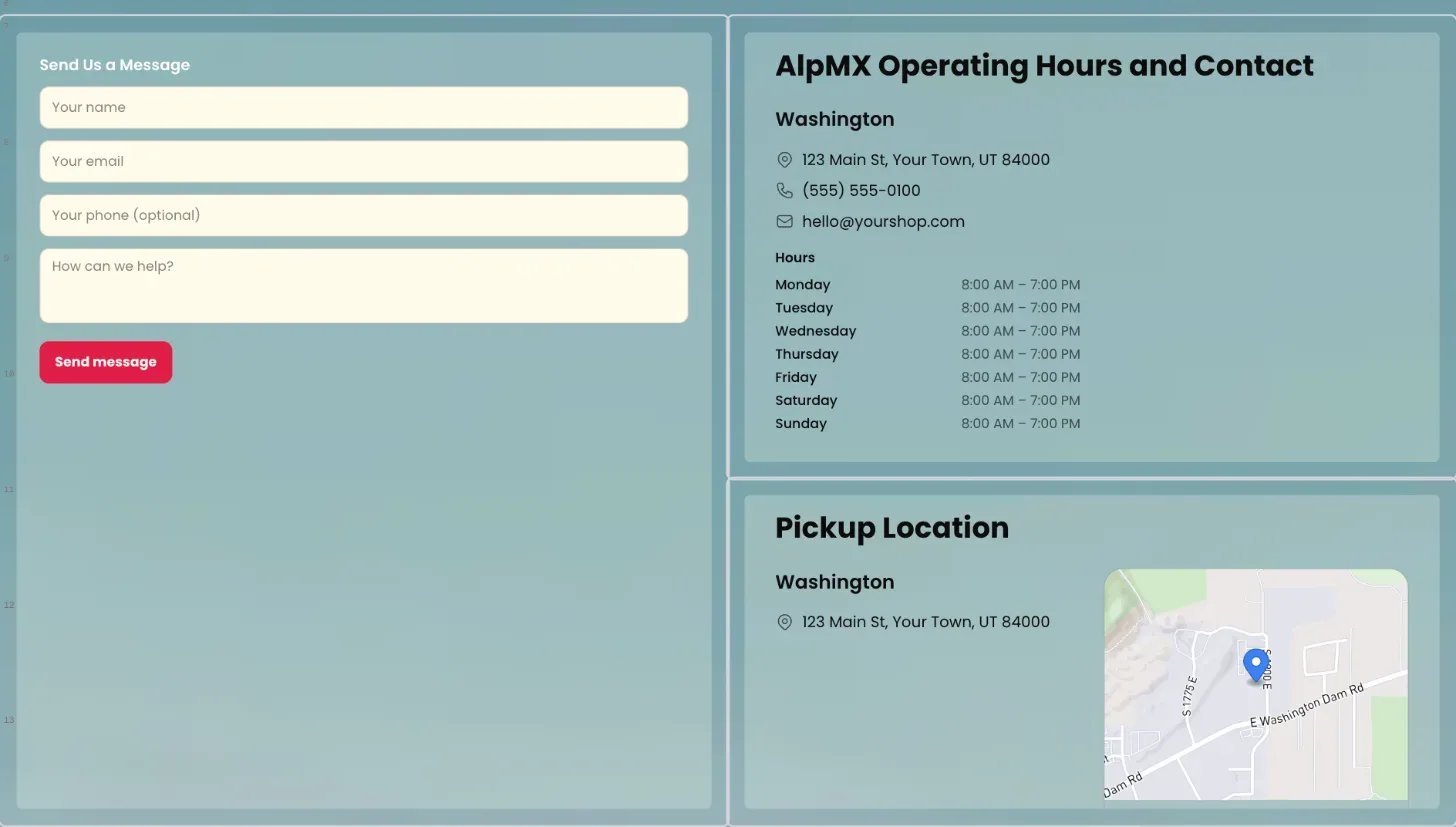 The Contact & Map widget showing a map card next to business hours and contact details
How it works
Contact & Map
- Heading: the title above this section.
- Show map: toggles the map on or off.
- Show phone / Show email / Show hours: toggle each piece of contact info independently.
- Location: which of your pickup locations the map centers on.
- Map style: Streets (clear street names, the default — good for "find our shop"), Outdoors, or Satellite.
- Map zoom: how close in the map starts, 0–22 (default 14).
- Map height: how tall the map card renders, in pixels.
- Click-through: when on (the default), tapping the map opens it in the visitor's own maps app for directions.
- Show contact form: adds a "Send us a message" form to this widget. Submitting it sends the message to Renta, which saves it as an inquiry (visible in your Inquiries section) and emails you. If that fails to go through, the form falls back to opening the visitor's own email app addressed to you, so their message is never lost.
Contact Form (standalone)
- Renders the same message form, placed anywhere on the page without also showing the map.
Example
A boat rental business could place this at the bottom of their homepage with the map centered on their marina, hours shown, and the contact form enabled so visitors can ask a quick question before booking.
Good to know
- The standalone Contact Form and the "Show contact form" toggle on Contact & Map render the same form — use whichever placement fits your page.
- Submitted messages show up in the Inquiries section of your dashboard and are emailed to you; the visitor's own email app only opens as a fallback if Renta can't be reached.
Related articles
- Website widgets — common questionsQuick answers on adding and setting up each website block (hero banner, fleet grid, photo gallery, Book Now button, contact map, reviews, FAQ, navbar, footer and more), and why a block may look empty on your live site.
- Website AI assistantTurn on Renta's own chat assistant for your public website. It answers customer questions from your live rentals, prices and availability, and is paid for with AI credits.
- The hero banner widgetA large banner at the top of a page with a headline, image or video background, and a call-to-action button.
- Reviews and FAQ widgetsShow your customer reviews in a list, grid or carousel, and answer common questions in a collapsible FAQ list.
- Text blocks and image galleriesA Text Block widget for writing rich content, and an Image Gallery widget for showing off photos.
Still stuck? Ask the chat.
Was this helpful?