Warning banners on a booking, explained
What the coloured notes at the top of a booking mean right after you create it in the admin, and what to redo by hand.
Where to find it
Bookings → open a booking → banner at the top of the page
After you create a booking from New booking in the admin, the booking page can show a coloured note at the top if one step did not finish. Each note says what to redo by hand. They appear once: when you reload the page or come back later, the note is gone, so act on it straight away.
Where to find it
Bookings → New booking → create the booking. The notes appear at the top of the booking page you land on.
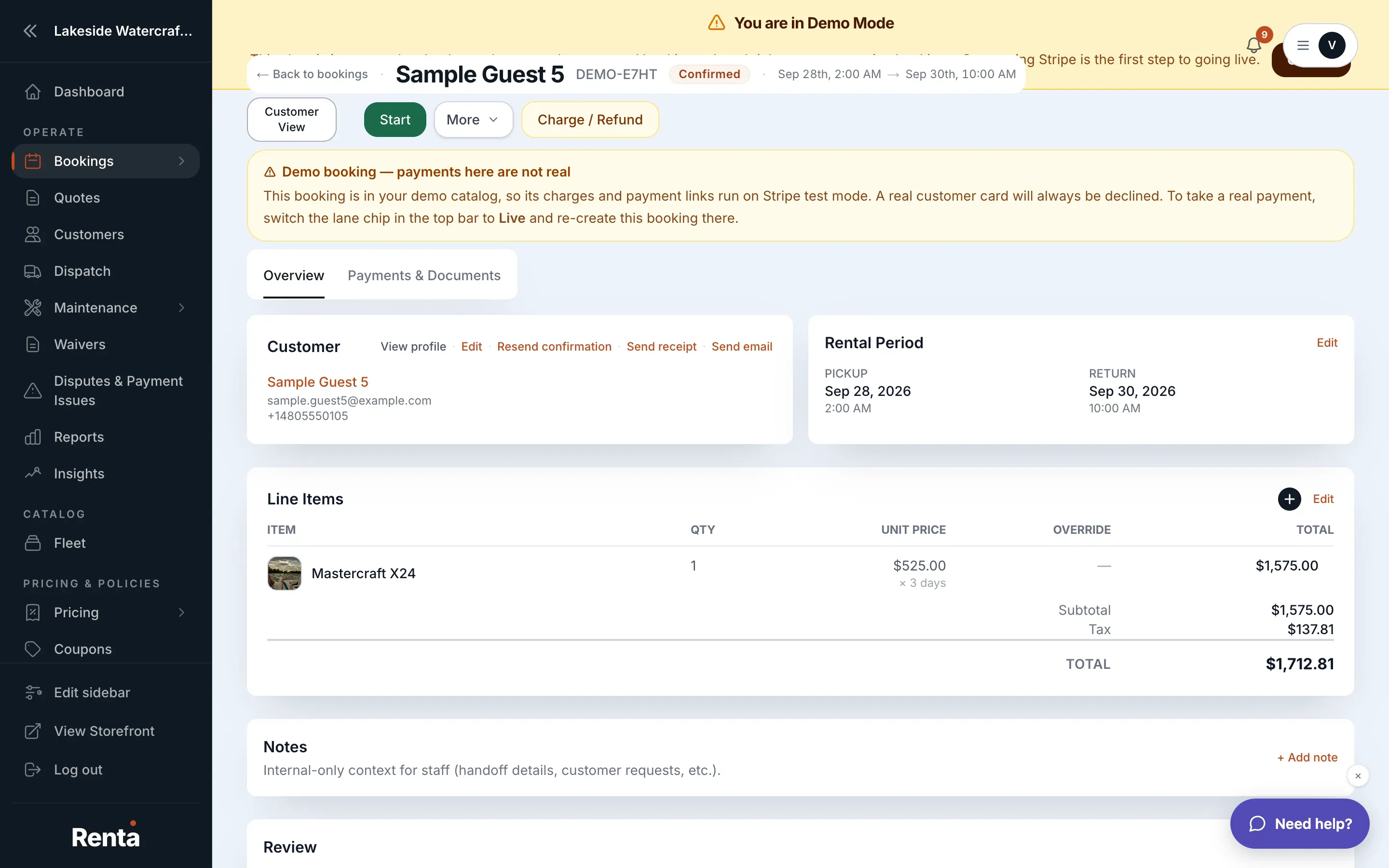 Warning banners at the top of a booking's detail page
What each note means
- "Booking created without processing payment. Balance due: $X." (blue) — you chose not to take payment yet. Nothing is wrong; collect the balance later from the booking's Payments & Documents tab.
- "Booking created, but payment setup failed. Balance due: $X." (amber) — the booking exists, but the payment step did not go through. Collect the balance yourself, for example with Charge in the Payment Log.
- "Booking created, but the rate override discount couldn't be applied automatically." (amber) — apply the discount by hand from the booking page (More → Discount).
- "Some documents didn't attach." (amber) — at least one file you added on New booking failed to upload. Re-attach it from the Documents section on the booking.
- "No units were reserved for this booking." (amber) — the units you picked could not be attached to their lines. Pick them from the unit dropdown on each line under Line items; pickup cannot be completed until every line has one.
- "The waiver link couldn't be sent automatically." (amber) — add an email or phone to the customer if needed, then use Resend on the booking's Waivers card.
Other notes you may see on a booking
- An amber note on a finished booking saying a security deposit is still held on the customer's card. See Releasing vs. capturing a deposit hold.
- The Needs resolution button in the Payment Log. See Payment history and signed documents on a booking.
Good to know
- These notes are separate from the booking's status: a booking can be Confirmed and still show one of them.
- A note about payment setup is about this one booking, not your whole account. If card payments fail everywhere, check your Stripe connection.
Related articles
- Printing or emailing a receiptPreview a booking's receipt before any payment, print it, and email the issued receipt from the booking's Documents area.
- Paying in parts: split payments, down payments and paying the rest laterThree ways to collect one booking's money in pieces - split one payment across cash and card, take a deposit or down payment now and the rest later, or let customers pay only a down payment online.
- Finding a bookingOn a computer, search above the availability calendar to jump to a booking; on a phone, search and filter a list by status.
- Common questions: refundsQuick answers on sending money back to a customer, why a refund has not gone out yet, how much you can refund, what happens to Renta's fee, gift cards and cash, and the difference between refunding and releasing a deposit.
- Changing a booking's datesMove a booking's pickup or return, see the new price first, and know what happens to add-ons, the deposit hold, typed prices, and past dates.
Still stuck? Ask the chat.
Was this helpful?