Backup codes if you lose your authenticator
One-time backup codes that get you back into your account if your two-factor authenticator app is unavailable.
Where to find it
Settings → Security → Backup codes card
Backup codes are your way back in if your phone is lost, broken, or wiped. Each code works once.
Where to find it
Settings → Security, in the Backup codes card. Codes are made for you the moment you set up an authenticator app (see Setting up two-factor login); before that the card just says so.
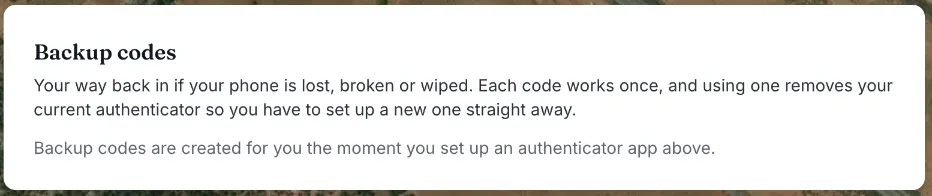 The Backup codes card before an authenticator app is set up: it explains that codes are created when you set one up, with no "unused codes left" count yet
How it works
- Ten codes are created when you set up your authenticator. Renta shows them once, in a box called "Save these backup codes now", and keeps only a scrambled copy. Print them or keep them in a password manager, not on the phone. Press Copy all to copy them, tick "I have saved these somewhere I can reach without my phone.", then press Done.
- "N unused codes left" — shows how many you have. At two or fewer, a warning says to generate a fresh set.
- Generate new backup codes — makes a new set and cancels the old set immediately. Anyone who is set up can do this for their own codes. The button only appears once your authenticator is set up.
- Using a code — at the sign-in code prompt, press Lost your phone? Use a backup code, type the code (it looks like ABCDE-12345), and press Continue. Using one removes your current authenticator, so Renta asks you to set up a new one straight away.
Example
Your phone breaks. At the code prompt you press Lost your phone? Use a backup code, type one saved code, and sign in. You then set up the authenticator on your new phone and save a fresh set of codes.
Good to know
- If you lose your phone and your codes, email team@rentalabs.io. Renta staff can clear your authenticator and codes so you can start again.
- Make sure you have saved the new set before discarding the old one, because the old codes stop working at once.
- For more quick answers see Common questions: two-factor login and security.
Related articles
- Requiring two-factor for your whole teamForce every staff member to set up two-factor authentication, with a grace period to enroll before it's required.
- What Renta support can and cannot do in your accountRenta support can open your account to help you set it up or fix a problem. Its changes are recorded, it can do almost everything you can, and it can never take payments or change your billing.
- I got blocked: what Renta's bot check does and what to tryRenta runs an invisible bot check (Vercel BotID) on saves in your admin, the demo entry and the AI assistant approval page. If it cannot tell you are a person, you see "Please reload the page". Here is what to try.
- Your account is paused: what it means and how to continueA paused account shows a "Your account is paused" page. Your data is kept. Go live to unlock it, or contact Renta. Free trials do not expire, so this only happens when Renta has paused an account.
Still stuck? Ask the chat.
Was this helpful?