Setting up two-factor login for your account
Add an authenticator app code requirement to your own login for extra security, with recovery codes as a backup.
Where to find it
Settings → Security → Your authenticator app card
Two-factor login adds a second step to signing in: a 6-digit code from an authenticator app on your phone. Anyone who can sign in to the admin can set it up for their own login.
Where to find it
Settings → Security, in the Your authenticator app card.
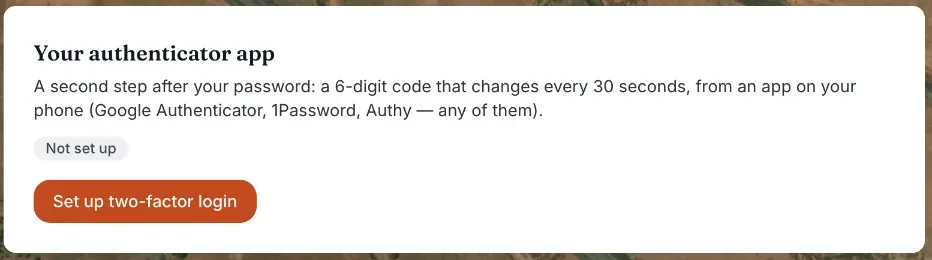 The Your authenticator app section with the Setup button
How it works
- Status badge — Set up or Not set up, telling you whether your login has an authenticator.
- Set up two-factor login — shown until you have one. It shows a QR code to scan with an authenticator app (Google Authenticator, 1Password, Authy, or any similar app). If you cannot scan, "Can't scan? Type this key instead" shows a text key to type in by hand. The app's code changes every 30 seconds.
- 6-digit code box and Confirm — type the code the app is showing and press Confirm. Nothing changes until that code is accepted. Renta then shows your backup codes, which you must save (see Backup codes).
- Cancel — closes the setup without changing anything.
- Replace with a new authenticator — replaces "Set up two-factor login" once you are set up. Use it when you change phone.
Example
You scan the QR code with Google Authenticator, type the 6 digits it shows, press Confirm, and save the backup codes. After that the card says "This login is protected."
Good to know
- There is no password in Renta. You sign in with a one-time code emailed to you, and two-factor is an extra code on top of that.
- Being set up does not mean a code at every sign-in. You are asked for the code once your business requires two-factor (see Requiring two-factor for your whole team).
- If you lose your phone, use a backup code. If you lose both, email team@rentalabs.io.
- For more quick answers see Common questions: two-factor login and security.
Related articles
- What Renta support can and cannot do in your accountRenta support can open your account to help you set it up or fix a problem. Its changes are recorded, it can do almost everything you can, and it can never take payments or change your billing.
- I got blocked: what Renta's bot check does and what to tryRenta runs an invisible bot check (Vercel BotID) on saves in your admin, the demo entry and the AI assistant approval page. If it cannot tell you are a person, you see "Please reload the page". Here is what to try.
- Scanning a unit's QR codeFind one specific unit fast by scanning its sticker with a camera, or by typing its asset tag or serial number, and what each result means.
- Common questions: individual units (machines, vehicles)Quick answers about adding, naming, moving, retiring and selling one physical machine, plus its QR sticker, scanning, meter readings, booking history, damage reports and photos.
Still stuck? Ask the chat.
Was this helpful?